> ## Documentation Index
> Fetch the complete documentation index at: https://docs.heygarth.ai/llms.txt
> Use this file to discover all available pages before exploring further.
# Slack notifications
> Connect a Slack app to G360 so scheduled reports and alerts post to your channels and direct message the people involved.
Connect a Slack app to G360 to send scheduled reports and alerts to Slack channels and direct messages.
The app posts messages and reads your channel list and member directory so you can choose destinations. It cannot read message history. Setup needs no G360 redeploy or restart.
This page covers **Slack notifications** — G360 sending messages to Slack. The [Slack analytics integration](/g360/slack) that builds collaboration dashboards is separate. You can set up either, both, or neither.
## Before you start
* A Slack user who can install apps in your workspace. If app installation is restricted, ask your Slack administrator.
* A G360 administrator account. **Slack Settings** is admin-only.
* Your G360 hostname over HTTPS, for example `https://g360.yourcompany.com`. You use it in two places in the app manifest.
**Does G360 need to be reachable from the internet?**
* **Sending messages** — No. G360 only needs outbound HTTPS to `slack.com`.
* **Automatic member updates** — Yes. Slack must reach G360 on port 443 with a valid, trusted TLS certificate. Self-signed certificates are rejected.
If G360 is internal-only, everything works except automatic member updates. Remove the `event_subscriptions` and `interactivity` blocks from the manifest, skip step 3, and use **Refresh members** to keep the member list current.
## Set up Slack
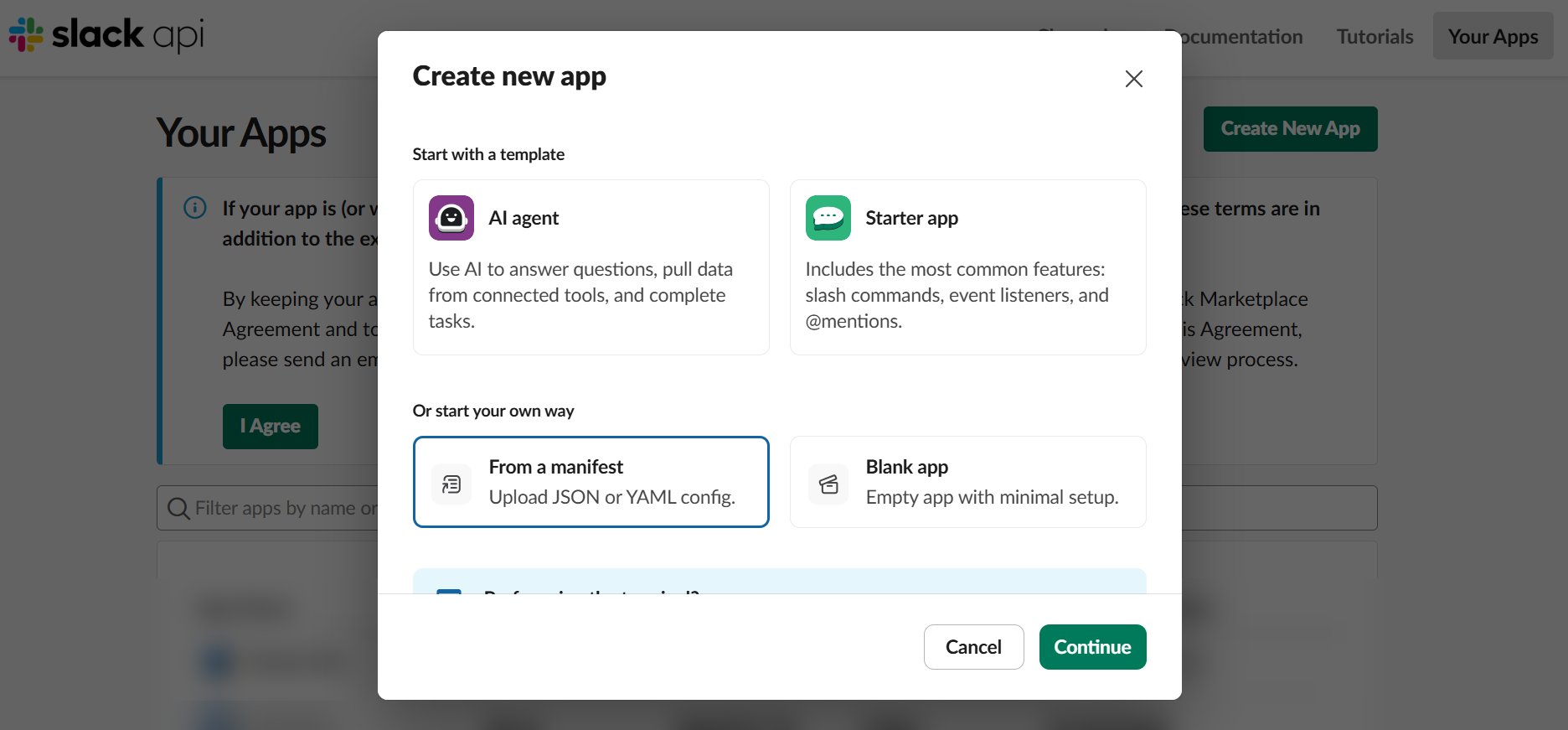
1. Go to [api.slack.com/apps](https://api.slack.com/apps) and click **Create New App → From a manifest**.
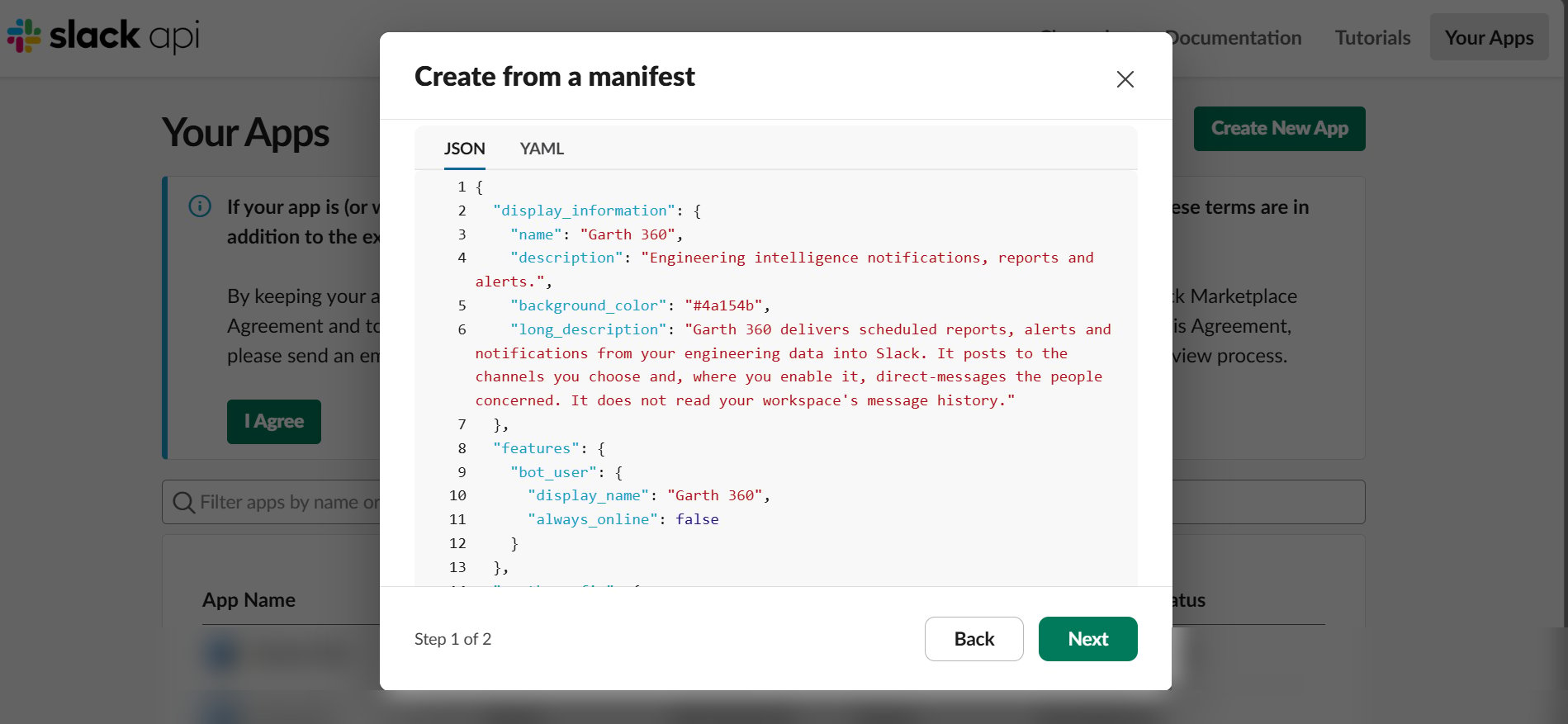
2. Choose your workspace and click **Next**.
3. On the **JSON** tab, replace the sample with the [app manifest](#app-manifest).
4. Replace both occurrences of `YOUR-G360-HOSTNAME` with your G360 hostname. They are in the `request_url` fields near the bottom.
5. Click **Next**, review, then **Create**.
 If G360 is not reachable from the internet, delete the whole `event_subscriptions` and `interactivity` blocks before you click **Create**. Slack checks those URLs when you save and refuses the manifest if it cannot reach them.
1. In the left sidebar, open **OAuth & Permissions**.
2. Click **Install to Workspace** and approve the permissions.
3. Copy the **Bot User OAuth Token**. It starts with `xoxb-`.
If G360 is not reachable from the internet, delete the whole `event_subscriptions` and `interactivity` blocks before you click **Create**. Slack checks those URLs when you save and refuses the manifest if it cannot reach them.
1. In the left sidebar, open **OAuth & Permissions**.
2. Click **Install to Workspace** and approve the permissions.
3. Copy the **Bot User OAuth Token**. It starts with `xoxb-`.
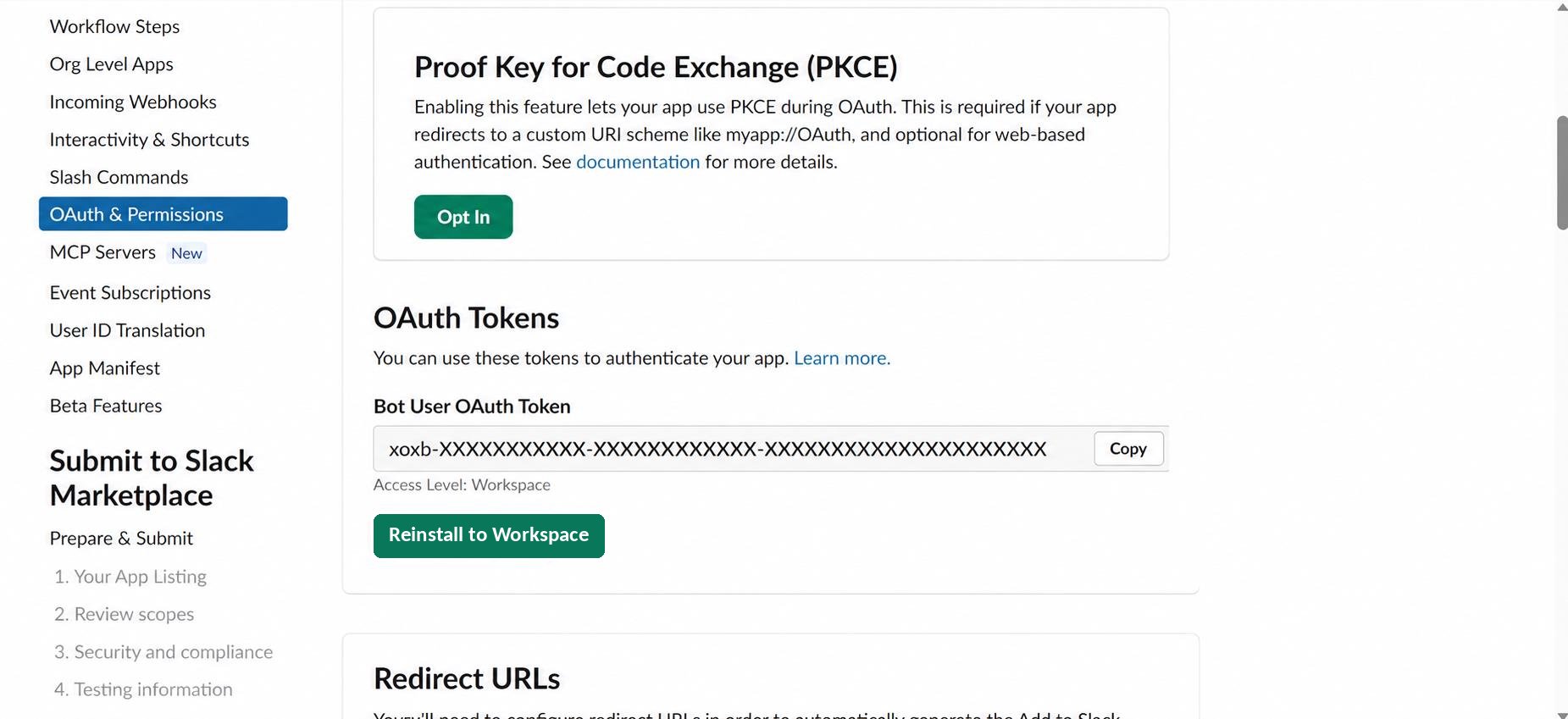 Copy the **Bot User OAuth Token** (`xoxb-`). Not a User OAuth Token (`xoxp-`) or an App-Level Token (`xapp-`).
**Enterprise Grid:** install once for the whole organization from **Slack admin → Integrations → Manage apps → Install an app**, then choose which workspaces the app reaches. The manifest already allows this.
Only needed if G360 is reachable from the internet and you kept the `event_subscriptions` block. Otherwise, skip to step 4.
1. In the left sidebar, open **Basic Information**.
2. Under **App Credentials**, click **Show** next to **Signing Secret** and copy it.
Copy the **Bot User OAuth Token** (`xoxb-`). Not a User OAuth Token (`xoxp-`) or an App-Level Token (`xapp-`).
**Enterprise Grid:** install once for the whole organization from **Slack admin → Integrations → Manage apps → Install an app**, then choose which workspaces the app reaches. The manifest already allows this.
Only needed if G360 is reachable from the internet and you kept the `event_subscriptions` block. Otherwise, skip to step 4.
1. In the left sidebar, open **Basic Information**.
2. Under **App Credentials**, click **Show** next to **Signing Secret** and copy it.
 Copy the **Signing Secret**, not the **Client Secret** next to it. Both are 32 hexadecimal characters.
1. In G360, go to **Settings → Slack Settings**.
2. Paste the **Bot User OAuth Token**.
3. Paste the **Signing Secret**, if you have one.
4. Click **Connect Slack**.
G360 verifies the token with Slack before saving. On success, the page shows your workspace name and loads your channels and members.
Copy the **Signing Secret**, not the **Client Secret** next to it. Both are 32 hexadecimal characters.
1. In G360, go to **Settings → Slack Settings**.
2. Paste the **Bot User OAuth Token**.
3. Paste the **Signing Secret**, if you have one.
4. Click **Connect Slack**.
G360 verifies the token with Slack before saving. On success, the page shows your workspace name and loads your channels and members.
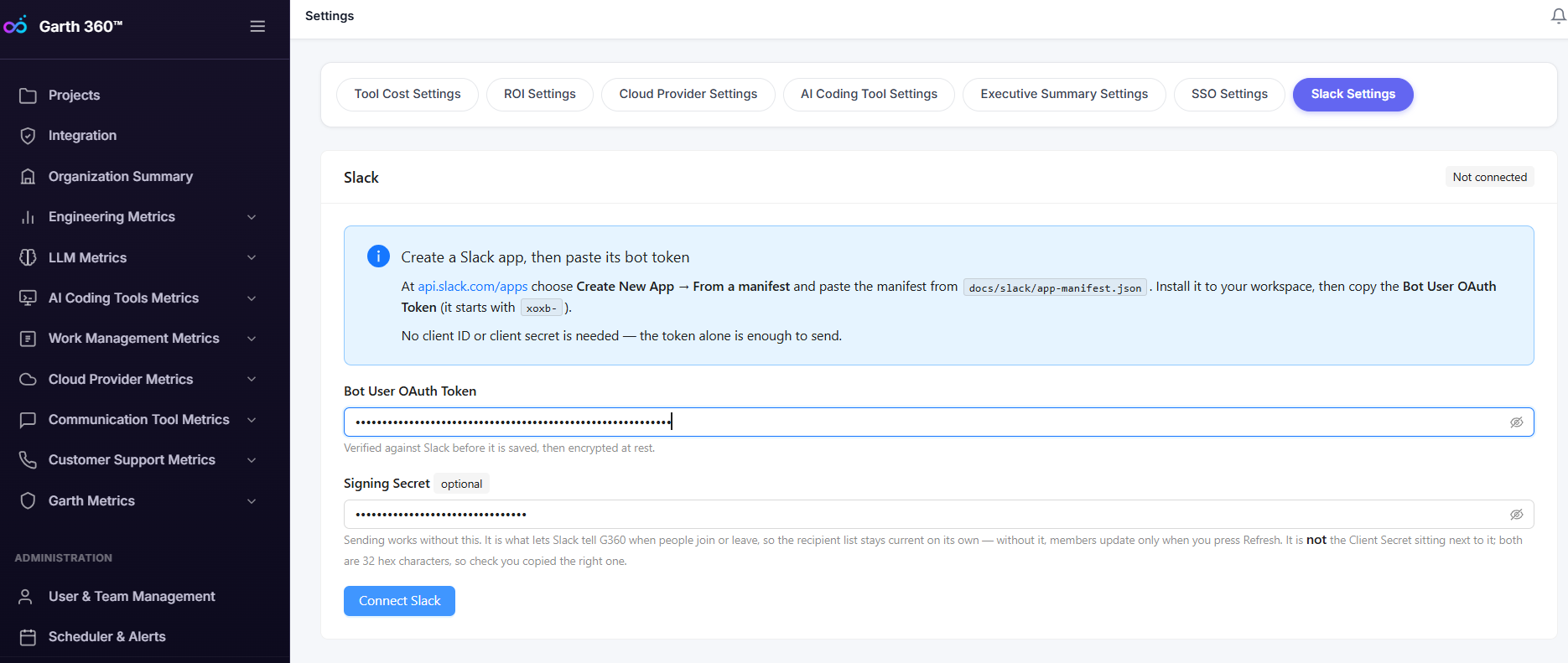 Both values are encrypted at rest and never shown again in full. The token appears masked, and the signing secret shows only as present or absent.
Slack checked the Events request URL when you created the app, before G360 had the signing secret. If **Automatic member updates** shows **awaiting Slack**, open **Event Subscriptions** in your Slack app and save the request URL again.
The app posts only where it is invited. In each channel that should receive reports or alerts, run:
```text Slack theme={null}
/invite @G360
```
Channels without the bot still appear in G360, greyed out and marked **(bot not invited)**.
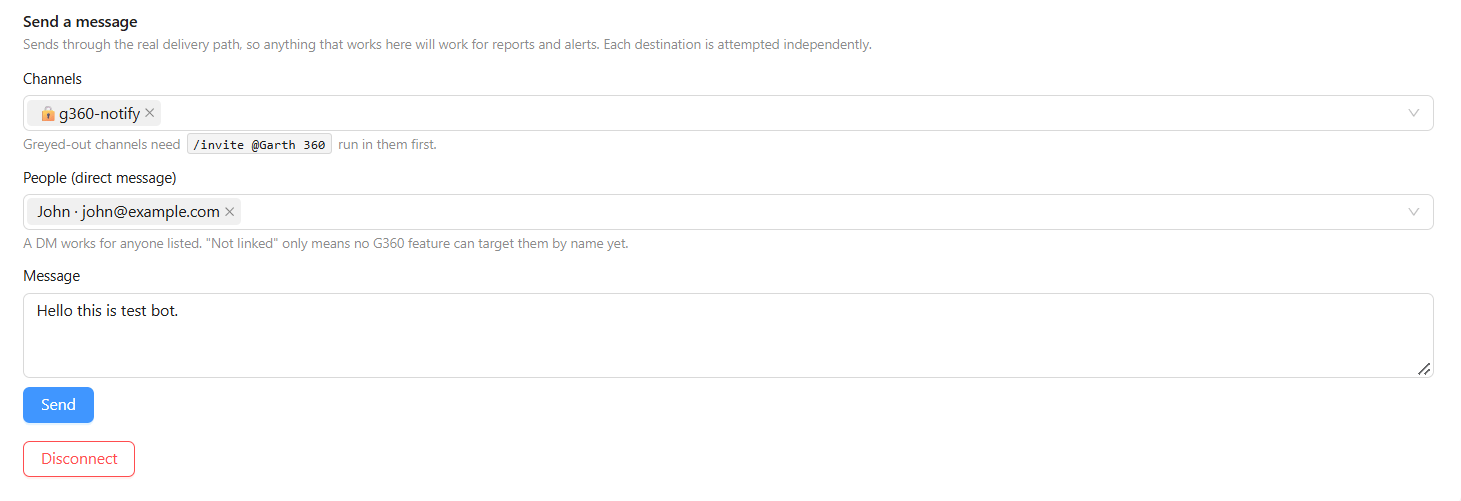
On **Settings → Slack Settings**, under **Send a message**, pick channels and people, type a message, and click **Send**. The test uses the same delivery path as reports and alerts. G360 reports each destination separately, and a failed destination shows how to fix it.
Both values are encrypted at rest and never shown again in full. The token appears masked, and the signing secret shows only as present or absent.
Slack checked the Events request URL when you created the app, before G360 had the signing secret. If **Automatic member updates** shows **awaiting Slack**, open **Event Subscriptions** in your Slack app and save the request URL again.
The app posts only where it is invited. In each channel that should receive reports or alerts, run:
```text Slack theme={null}
/invite @G360
```
Channels without the bot still appear in G360, greyed out and marked **(bot not invited)**.
On **Settings → Slack Settings**, under **Send a message**, pick channels and people, type a message, and click **Send**. The test uses the same delivery path as reports and alerts. G360 reports each destination separately, and a failed destination shows how to fix it.
 ## Use Slack in reports and alerts
In [Schedule Report](/g360/schedule-report) or [Schedule Alert](/g360/schedule-alert), select **Slack** under **Notification Channels**, then choose channels and people. No webhook URL is needed — destinations come from your real channel and member lists, so a report can only point where the app can reach.
## Keep the member list current
**Automatic member updates** on the settings page shows the sync mode:
| Status | Meaning |
| ------------------ | -------------------------------------------------------------------------------------------------------------- |
| **active** | Slack reaches G360. Joins, profile changes, and deactivations sync within about a minute. |
| **awaiting Slack** | A signing secret is saved, but no request from Slack has arrived yet. See [troubleshooting](#troubleshooting). |
| **off** | No signing secret. The list changes only when you click **Refresh members**. |
**Refresh members** is always available and safe to use. It re-reads the whole workspace, so clicking it more than once has no extra effect.
Any listed member can receive a direct message. Reports and alerts that target people by name only reach members whose Slack email matches a G360 user. After a refresh, the page reports:
| Count | Meaning |
| --------------- | --------------------------------------- |
| **synced** | Members Slack returned |
| **with\_email** | Members with an email address in Slack |
| **addressable** | Members whose email matches a G360 user |
## Disconnect Slack
1. In G360, click **Disconnect** on **Slack Settings**. G360 stops sending and deletes the stored credentials.
2. In Slack, remove the app from your workspace. G360 detects the removal and marks the connection inactive.
Do both. Either one alone leaves the other side configured.
## Troubleshooting
You copied the wrong token. Copy the **Bot User OAuth Token** (`xoxb-`) from **OAuth & Permissions**.
The token is wrong or revoked, or the app was reinstalled after you copied it. Copy the current **Bot User OAuth Token** and paste it again.
Compare the app's scopes under **OAuth & Permissions → Scopes** with the [permissions list](#permissions). Add any missing scope, reinstall the app, and paste the new token into G360.
Slack does not always report the full scope list. If sending works, you can ignore this message.
The app is not invited to that channel. Run `/invite @G360` in it. This is the most common first-run problem.
Usually a private channel the app is not invited to. Slack reports a private channel it cannot see the same way as one that does not exist. Invite the app from inside the channel.
The app is missing the `users:read.email` scope. Add it, reinstall the app, and paste the new token.
Slack emails do not match G360 user emails. Check for different domains, aliases, or capitalization.
Usually a temporary Slack rate limit. Wait a minute and click **Refresh members**.
Check in order:
1. The hostname is your real G360 hostname, with no trailing slash before `/api/v1/…`.
2. The URL is reachable from the internet. Open `https://g360.yourcompany.com/api/v1/slack/events/` from a phone on mobile data — any response from G360 means Slack can reach it.
3. The TLS certificate is valid and trusted. Slack rejects self-signed certificates.
4. The signing secret is saved in G360. Without it, G360 cannot answer Slack's check. Complete steps 3 and 4, then save the request URL again under **Event Subscriptions**.
If G360 is internal-only, remove the `event_subscriptions` and `interactivity` blocks and use **Refresh members**.
No request from Slack has verified against the stored signing secret. Possible causes:
* The Events request URL is not set. Add the `event_subscriptions` block from the [app manifest](#app-manifest), or set it under **Event Subscriptions** in your Slack app.
* Slack cannot reach G360. See the entry above.
* The signing secret is wrong — often the Client Secret was copied instead. Copy it again from **Basic Information → App Credentials → Signing Secret**.
To force a check, save the request URL again in **Event Subscriptions**. The status changes to **active** within seconds if the secret is correct.
G360 cannot test a signing secret on its own. Only a real request from Slack confirms it.
Confirm **Automatic member updates** shows **active**. If it does, allow about a minute — G360 groups several changes into one update, so new members do not appear instantly.
1. Check the report's execution history to confirm it ran.
2. Confirm **Slack** is selected with at least one channel or person.
3. Confirm the app is invited to the channel.
4. Confirm **Slack Settings** still shows the connection as connected.
## Reference
### App manifest
Replace both occurrences of `YOUR-G360-HOSTNAME` with your G360 hostname. If G360 is not reachable from the internet, delete the `event_subscriptions` and `interactivity` blocks.
```json Slack app manifest theme={null}
{
"display_information": {
"name": "G360",
"description": "Engineering intelligence notifications, reports and alerts.",
"background_color": "#4a154b",
"long_description": "G360 delivers scheduled reports, alerts and notifications from your engineering data into Slack. It posts to the channels you choose and, where you enable it, direct-messages the people concerned. It does not read your workspace's message history."
},
"features": {
"bot_user": {
"display_name": "G360",
"always_online": false
}
},
"oauth_config": {
"scopes": {
"bot": [
"chat:write",
"chat:write.public",
"mpim:write",
"im:write",
"files:write",
"channels:read",
"groups:read",
"users:read",
"users:read.email",
"team:read"
]
}
},
"settings": {
"interactivity": {
"is_enabled": true,
"request_url": "https://YOUR-G360-HOSTNAME/api/v1/slack/interactions/"
},
"event_subscriptions": {
"request_url": "https://YOUR-G360-HOSTNAME/api/v1/slack/events/",
"bot_events": [
"team_join",
"user_change",
"app_uninstalled",
"tokens_revoked"
]
},
"org_deploy_enabled": true,
"socket_mode_enabled": false,
"token_rotation_enabled": false
}
}
```
### Permissions
| Scope | Purpose |
| ------------------------------ | ---------------------------------------------- |
| `chat:write` | Post to channels the app is invited to |
| `chat:write.public` | Post to public channels without an invite |
| `mpim:write`, `im:write` | Send direct messages |
| `files:write` | Attach report PDFs |
| `channels:read`, `groups:read` | List channel names for destination selection |
| `users:read` | List workspace members for recipient selection |
| `users:read.email` | Match members to G360 users by email |
| `team:read` | Show the workspace name on the settings page |
The app requests no scope that reads message content. `channels:read` returns channel names, not messages.
G360 subscribes to four events: `team_join` and `user_change` keep the member list current; `app_uninstalled` and `tokens_revoked` stop sending when the app is removed.
## Use Slack in reports and alerts
In [Schedule Report](/g360/schedule-report) or [Schedule Alert](/g360/schedule-alert), select **Slack** under **Notification Channels**, then choose channels and people. No webhook URL is needed — destinations come from your real channel and member lists, so a report can only point where the app can reach.
## Keep the member list current
**Automatic member updates** on the settings page shows the sync mode:
| Status | Meaning |
| ------------------ | -------------------------------------------------------------------------------------------------------------- |
| **active** | Slack reaches G360. Joins, profile changes, and deactivations sync within about a minute. |
| **awaiting Slack** | A signing secret is saved, but no request from Slack has arrived yet. See [troubleshooting](#troubleshooting). |
| **off** | No signing secret. The list changes only when you click **Refresh members**. |
**Refresh members** is always available and safe to use. It re-reads the whole workspace, so clicking it more than once has no extra effect.
Any listed member can receive a direct message. Reports and alerts that target people by name only reach members whose Slack email matches a G360 user. After a refresh, the page reports:
| Count | Meaning |
| --------------- | --------------------------------------- |
| **synced** | Members Slack returned |
| **with\_email** | Members with an email address in Slack |
| **addressable** | Members whose email matches a G360 user |
## Disconnect Slack
1. In G360, click **Disconnect** on **Slack Settings**. G360 stops sending and deletes the stored credentials.
2. In Slack, remove the app from your workspace. G360 detects the removal and marks the connection inactive.
Do both. Either one alone leaves the other side configured.
## Troubleshooting
You copied the wrong token. Copy the **Bot User OAuth Token** (`xoxb-`) from **OAuth & Permissions**.
The token is wrong or revoked, or the app was reinstalled after you copied it. Copy the current **Bot User OAuth Token** and paste it again.
Compare the app's scopes under **OAuth & Permissions → Scopes** with the [permissions list](#permissions). Add any missing scope, reinstall the app, and paste the new token into G360.
Slack does not always report the full scope list. If sending works, you can ignore this message.
The app is not invited to that channel. Run `/invite @G360` in it. This is the most common first-run problem.
Usually a private channel the app is not invited to. Slack reports a private channel it cannot see the same way as one that does not exist. Invite the app from inside the channel.
The app is missing the `users:read.email` scope. Add it, reinstall the app, and paste the new token.
Slack emails do not match G360 user emails. Check for different domains, aliases, or capitalization.
Usually a temporary Slack rate limit. Wait a minute and click **Refresh members**.
Check in order:
1. The hostname is your real G360 hostname, with no trailing slash before `/api/v1/…`.
2. The URL is reachable from the internet. Open `https://g360.yourcompany.com/api/v1/slack/events/` from a phone on mobile data — any response from G360 means Slack can reach it.
3. The TLS certificate is valid and trusted. Slack rejects self-signed certificates.
4. The signing secret is saved in G360. Without it, G360 cannot answer Slack's check. Complete steps 3 and 4, then save the request URL again under **Event Subscriptions**.
If G360 is internal-only, remove the `event_subscriptions` and `interactivity` blocks and use **Refresh members**.
No request from Slack has verified against the stored signing secret. Possible causes:
* The Events request URL is not set. Add the `event_subscriptions` block from the [app manifest](#app-manifest), or set it under **Event Subscriptions** in your Slack app.
* Slack cannot reach G360. See the entry above.
* The signing secret is wrong — often the Client Secret was copied instead. Copy it again from **Basic Information → App Credentials → Signing Secret**.
To force a check, save the request URL again in **Event Subscriptions**. The status changes to **active** within seconds if the secret is correct.
G360 cannot test a signing secret on its own. Only a real request from Slack confirms it.
Confirm **Automatic member updates** shows **active**. If it does, allow about a minute — G360 groups several changes into one update, so new members do not appear instantly.
1. Check the report's execution history to confirm it ran.
2. Confirm **Slack** is selected with at least one channel or person.
3. Confirm the app is invited to the channel.
4. Confirm **Slack Settings** still shows the connection as connected.
## Reference
### App manifest
Replace both occurrences of `YOUR-G360-HOSTNAME` with your G360 hostname. If G360 is not reachable from the internet, delete the `event_subscriptions` and `interactivity` blocks.
```json Slack app manifest theme={null}
{
"display_information": {
"name": "G360",
"description": "Engineering intelligence notifications, reports and alerts.",
"background_color": "#4a154b",
"long_description": "G360 delivers scheduled reports, alerts and notifications from your engineering data into Slack. It posts to the channels you choose and, where you enable it, direct-messages the people concerned. It does not read your workspace's message history."
},
"features": {
"bot_user": {
"display_name": "G360",
"always_online": false
}
},
"oauth_config": {
"scopes": {
"bot": [
"chat:write",
"chat:write.public",
"mpim:write",
"im:write",
"files:write",
"channels:read",
"groups:read",
"users:read",
"users:read.email",
"team:read"
]
}
},
"settings": {
"interactivity": {
"is_enabled": true,
"request_url": "https://YOUR-G360-HOSTNAME/api/v1/slack/interactions/"
},
"event_subscriptions": {
"request_url": "https://YOUR-G360-HOSTNAME/api/v1/slack/events/",
"bot_events": [
"team_join",
"user_change",
"app_uninstalled",
"tokens_revoked"
]
},
"org_deploy_enabled": true,
"socket_mode_enabled": false,
"token_rotation_enabled": false
}
}
```
### Permissions
| Scope | Purpose |
| ------------------------------ | ---------------------------------------------- |
| `chat:write` | Post to channels the app is invited to |
| `chat:write.public` | Post to public channels without an invite |
| `mpim:write`, `im:write` | Send direct messages |
| `files:write` | Attach report PDFs |
| `channels:read`, `groups:read` | List channel names for destination selection |
| `users:read` | List workspace members for recipient selection |
| `users:read.email` | Match members to G360 users by email |
| `team:read` | Show the workspace name on the settings page |
The app requests no scope that reads message content. `channels:read` returns channel names, not messages.
G360 subscribes to four events: `team_join` and `user_change` keep the member list current; `app_uninstalled` and `tokens_revoked` stop sending when the app is removed.