> ## Documentation Index
> Fetch the complete documentation index at: https://docs.heygarth.ai/llms.txt
> Use this file to discover all available pages before exploring further.
# SSO with Microsoft Entra ID
> Create the Entra ID app registration for G360, collect its credentials, and set up SCIM provisioning.
This page covers **Step 4** (creating the application) and **SCIM setup** for Microsoft Entra ID. Everything else — enabling SSO, entering credentials, access policy — is the same for all providers and is covered in [SSO Setup](/g360/sso-setup).
**Copy the callback URL from G360 first.** Go to **Settings → SSO Settings**, turn on **Enable single sign-on**, and copy the read-only **Callback URL** from the Identity Provider section. You paste it into Entra below.
## Create the app registration
Console: [entra.microsoft.com](https://entra.microsoft.com) → **Identity → Applications → App registrations → New registration**.
| Field | Value |
| --------------------------- | --------------------------------------------------------------------------------- |
| **Name** | `G360` (or any recognizable name) |
| **Supported account types** | **Accounts in this organizational directory only** (single tenant) |
| **Redirect URI** | Platform: **Web** — paste the callback URL from G360, **trailing slash included** |
**Platform must be Web, not Single-page application.** An SPA registration enforces PKCE and refuses a client secret. G360 exchanges the authorization code from its own server, so it needs a confidential (Web) client.
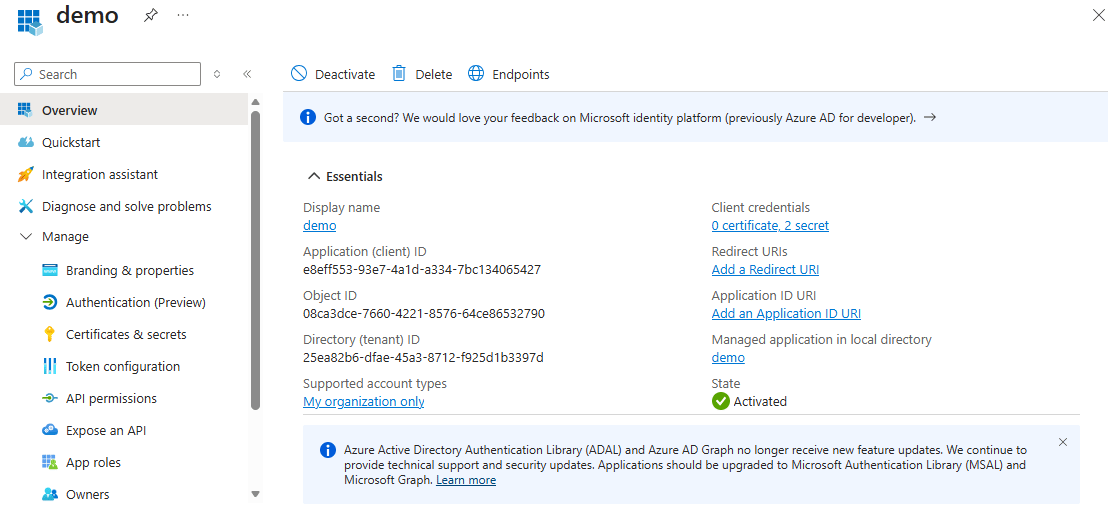
From the application's **Overview** page, copy:
* **Application (client) ID** — this is your **Client ID**.
* **Directory (tenant) ID** — you need this for the issuer URL below.
 ## Create the client secret
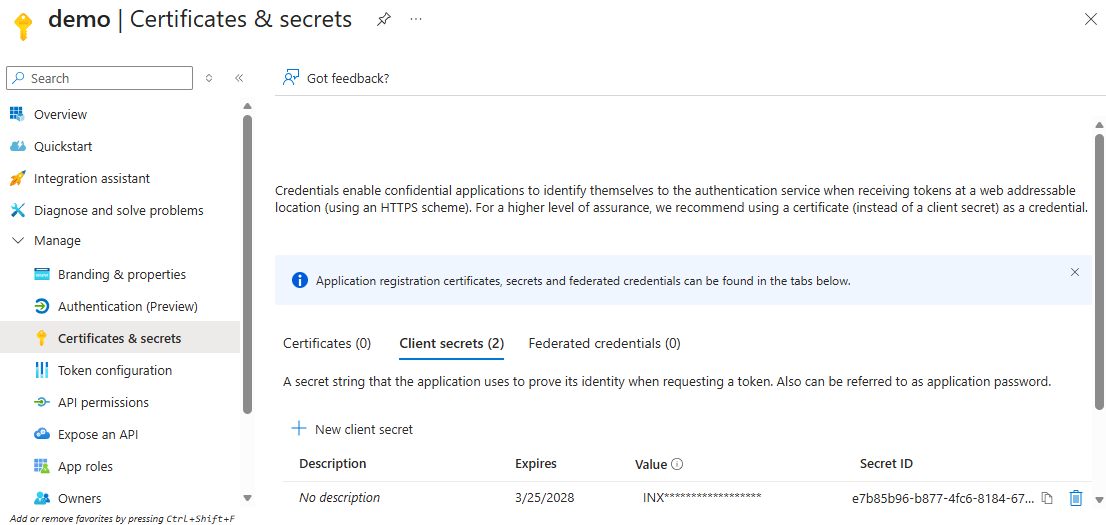
**Certificates & secrets → Client secrets → New client secret.**
**Copy the `Value` column immediately.** Entra shows it once and masks it permanently afterwards. **Do not copy the Secret ID** — that is an identifier, not the credential, and using it in G360 produces an authentication failure that looks like a misconfiguration on your end.
## Create the client secret
**Certificates & secrets → Client secrets → New client secret.**
**Copy the `Value` column immediately.** Entra shows it once and masks it permanently afterwards. **Do not copy the Secret ID** — that is an identifier, not the credential, and using it in G360 produces an authentication failure that looks like a misconfiguration on your end.
 ## Build the issuer URL
Use the **Directory (tenant) ID** you copied above:
```text Issuer URL theme={null}
https://login.microsoftonline.com//v2.0/.well-known/openid-configuration
```
**The `/v2.0/` segment is mandatory.** The same URL without it points at a different, older token issuer that is not standards-compliant for this purpose — it will appear to work before failing in confusing ways. Paste the full URL into a browser and confirm it returns JSON before entering it into G360.
## Consent
G360 requests only the `openid`, `profile` and `email` scopes, which are user-consentable on a default tenant.
If your organization has disabled user consent, the first person to sign in sees **"Need admin approval"**. An administrator needs to grant consent on the app once — a smaller request than a full role grant.
## Next: enter the details in G360
You now have the **Client ID**, **Client Secret** and **Issuer URL**. Return to [Step 5 of the setup guide](/g360/sso-setup#step-5-enter-the-details-in-g360) to enter them, test the connection, and save.
***
## SCIM provisioning
**SCIM requires Entra ID P1 or P2.** It is **not possible on Entra ID Free**, regardless of how G360 is configured — the Provisioning blade either doesn't appear or can't be set to Automatic. SSO works on every tier, including Free.
P1 is often already included in Microsoft 365 Business Premium, M365 E3, or EMS E3. Office 365 E1–E3 and M365 Business Basic/Standard do not include it.
Creating the second application needs the **Cloud Application Administrator** or **Application Administrator** role at directory level — a higher bar than registering the SSO app, which is often available to any user whose tenant allows it. If **Create your own application** is greyed out, this is why.
First, [generate a SCIM token in G360](/g360/sso-scim#step-1-generate-a-token-in-g360).
### Create a second application
The app registration you created for SSO **cannot be reused** — its service principal has no synchronization template, so its Provisioning blade has nothing to configure.
**Enterprise applications → New application → Create your own application → "Integrate any other application you don't find in the gallery (Non-gallery)".**
Name it something clearly distinct from your SSO app — for example `G360 SCIM` versus `G360 SSO`. Creating an app registration also auto-creates an enterprise application of the same name, so it's easy to end up configuring the wrong one.
### Connect it to G360
**Provisioning → Get started → Provisioning Mode: Automatic.**
| Field | Value |
| ---------------- | --------------------------------------------------------------------------------------------------- |
| **Tenant URL** | Your G360 SCIM endpoint — **no trailing slash and no `/Users`** (Entra appends the resource itself) |
| **Secret Token** | The raw token from G360, **no `Bearer` prefix** |
**Save first, then Enable, then Test Connection.** The connection control is inert until the credentials are persisted.
### Attribute mapping
Open **Provisioning → Attribute mapping**:
1. Open **Provision Microsoft Entra ID Groups** and set **Enabled: No**. G360 supports user provisioning only, and leaving Groups mapped fails on every sync cycle.
2. In **Provision Microsoft Entra ID Users**, confirm `externalId` is mapped from **`objectId`**, not `mailNickname`.
3. Confirm **Target Object Actions** includes **Create**, **Update** and **Delete**.
Entra's default for `externalId` is not always `objectId`. `mailNickname` is a **mutable alias** and will not stay a stable match over time. Fix this **before provisioning anybody** — changing it later leaves every existing user holding the old value.
Confirm `userName` is mapped to the user's **email address**. Entra usually maps it from `userPrincipalName`, which is correct when your UPNs are the email addresses. If they aren't, change the source to **`mail`**.
### Scope and assignment
**Settings → Scope: "Sync only assigned users and groups."**
Never choose **"Sync all users and groups"** — it would push your entire directory into G360.
Assign every user to **both** applications:
* The **SSO** app — only if its **Properties → "Assignment required?"** is set to **Yes**.
* The **SCIM** app — **always required**. This is what actually controls who is provisioned and deprovisioned.
## Build the issuer URL
Use the **Directory (tenant) ID** you copied above:
```text Issuer URL theme={null}
https://login.microsoftonline.com//v2.0/.well-known/openid-configuration
```
**The `/v2.0/` segment is mandatory.** The same URL without it points at a different, older token issuer that is not standards-compliant for this purpose — it will appear to work before failing in confusing ways. Paste the full URL into a browser and confirm it returns JSON before entering it into G360.
## Consent
G360 requests only the `openid`, `profile` and `email` scopes, which are user-consentable on a default tenant.
If your organization has disabled user consent, the first person to sign in sees **"Need admin approval"**. An administrator needs to grant consent on the app once — a smaller request than a full role grant.
## Next: enter the details in G360
You now have the **Client ID**, **Client Secret** and **Issuer URL**. Return to [Step 5 of the setup guide](/g360/sso-setup#step-5-enter-the-details-in-g360) to enter them, test the connection, and save.
***
## SCIM provisioning
**SCIM requires Entra ID P1 or P2.** It is **not possible on Entra ID Free**, regardless of how G360 is configured — the Provisioning blade either doesn't appear or can't be set to Automatic. SSO works on every tier, including Free.
P1 is often already included in Microsoft 365 Business Premium, M365 E3, or EMS E3. Office 365 E1–E3 and M365 Business Basic/Standard do not include it.
Creating the second application needs the **Cloud Application Administrator** or **Application Administrator** role at directory level — a higher bar than registering the SSO app, which is often available to any user whose tenant allows it. If **Create your own application** is greyed out, this is why.
First, [generate a SCIM token in G360](/g360/sso-scim#step-1-generate-a-token-in-g360).
### Create a second application
The app registration you created for SSO **cannot be reused** — its service principal has no synchronization template, so its Provisioning blade has nothing to configure.
**Enterprise applications → New application → Create your own application → "Integrate any other application you don't find in the gallery (Non-gallery)".**
Name it something clearly distinct from your SSO app — for example `G360 SCIM` versus `G360 SSO`. Creating an app registration also auto-creates an enterprise application of the same name, so it's easy to end up configuring the wrong one.
### Connect it to G360
**Provisioning → Get started → Provisioning Mode: Automatic.**
| Field | Value |
| ---------------- | --------------------------------------------------------------------------------------------------- |
| **Tenant URL** | Your G360 SCIM endpoint — **no trailing slash and no `/Users`** (Entra appends the resource itself) |
| **Secret Token** | The raw token from G360, **no `Bearer` prefix** |
**Save first, then Enable, then Test Connection.** The connection control is inert until the credentials are persisted.
### Attribute mapping
Open **Provisioning → Attribute mapping**:
1. Open **Provision Microsoft Entra ID Groups** and set **Enabled: No**. G360 supports user provisioning only, and leaving Groups mapped fails on every sync cycle.
2. In **Provision Microsoft Entra ID Users**, confirm `externalId` is mapped from **`objectId`**, not `mailNickname`.
3. Confirm **Target Object Actions** includes **Create**, **Update** and **Delete**.
Entra's default for `externalId` is not always `objectId`. `mailNickname` is a **mutable alias** and will not stay a stable match over time. Fix this **before provisioning anybody** — changing it later leaves every existing user holding the old value.
Confirm `userName` is mapped to the user's **email address**. Entra usually maps it from `userPrincipalName`, which is correct when your UPNs are the email addresses. If they aren't, change the source to **`mail`**.
### Scope and assignment
**Settings → Scope: "Sync only assigned users and groups."**
Never choose **"Sync all users and groups"** — it would push your entire directory into G360.
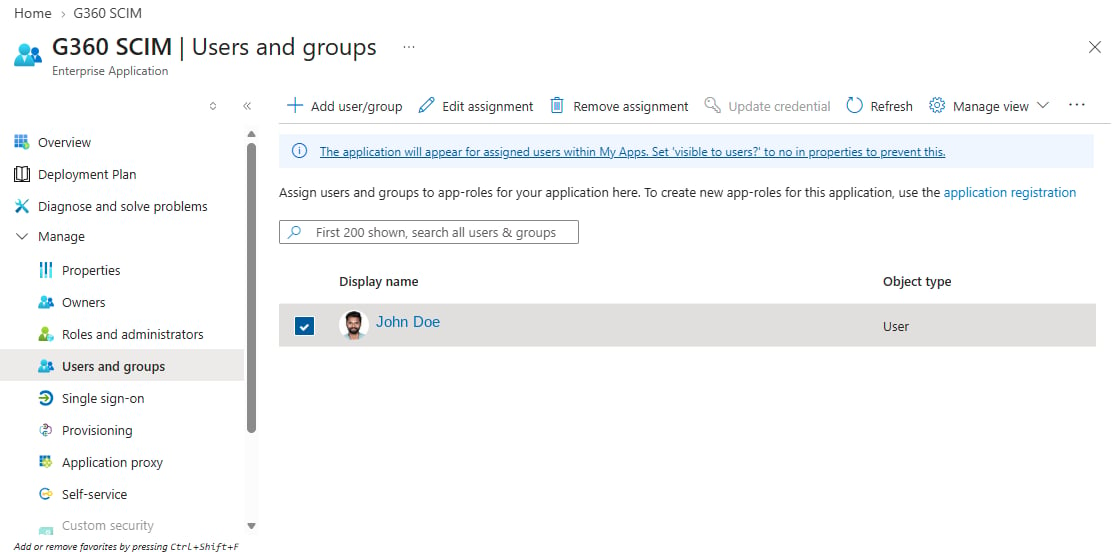
Assign every user to **both** applications:
* The **SSO** app — only if its **Properties → "Assignment required?"** is set to **Yes**.
* The **SCIM** app — **always required**. This is what actually controls who is provisioned and deprovisioned.
 ***
## Provider-specific errors
If Entra's own screen shows an error before you're redirected back to G360, the problem is on its side. These carry an `AADSTS` code, which is precise.
| Message | Meaning |
| ----------------------------------------------------- | ------------------------------------------------------------------------------------------- |
| `AADSTS50011` — reply URL mismatch | Redirect URI doesn't match: trailing slash, or the callback URL wasn't copied exactly |
| `AADSTS7000215` — invalid client secret | The **Secret ID** was entered instead of the **Value**, or the secret has expired |
| `AADSTS700016` — application not found | Wrong client ID, or wrong tenant ID in the issuer URL |
| `AADSTS65001` / "Need admin approval" | Your tenant has disabled user consent — an administrator must grant consent on the app once |
| `AADSTS50020` — user account does not exist in tenant | Signed in with a personal or other-tenant account against a single-tenant registration |
For errors that appear **after** you're back in G360, see [Troubleshooting](/g360/sso-setup#troubleshooting).
***
## Provider-specific errors
If Entra's own screen shows an error before you're redirected back to G360, the problem is on its side. These carry an `AADSTS` code, which is precise.
| Message | Meaning |
| ----------------------------------------------------- | ------------------------------------------------------------------------------------------- |
| `AADSTS50011` — reply URL mismatch | Redirect URI doesn't match: trailing slash, or the callback URL wasn't copied exactly |
| `AADSTS7000215` — invalid client secret | The **Secret ID** was entered instead of the **Value**, or the secret has expired |
| `AADSTS700016` — application not found | Wrong client ID, or wrong tenant ID in the issuer URL |
| `AADSTS65001` / "Need admin approval" | Your tenant has disabled user consent — an administrator must grant consent on the app once |
| `AADSTS50020` — user account does not exist in tenant | Signed in with a personal or other-tenant account against a single-tenant registration |
For errors that appear **after** you're back in G360, see [Troubleshooting](/g360/sso-setup#troubleshooting).