> ## Documentation Index
> Fetch the complete documentation index at: https://docs.heygarth.ai/llms.txt
> Use this file to discover all available pages before exploring further.
# SSO with PingOne
> Create the PingOne OIDC application for G360, collect its credentials, and set up SCIM provisioning.
This page covers **Step 4** (creating the application) and **SCIM setup** for PingOne. Everything else — enabling SSO, entering credentials, access policy — is the same for all providers and is covered in [SSO Setup](/g360/sso-setup).
**Copy the callback URL from G360 first.** Go to **Settings → SSO Settings**, turn on **Enable single sign-on**, and copy the read-only **Callback URL** from the Identity Provider section. You paste it into PingOne below.
PingOne is the **only provider where one application handles both SSO and SCIM**. Everything below stays within a single app.
## Create the OIDC application
Console: your PingOne environment — use your production (or sandbox) environment, **not the Administrators environment**, which is for managing the tenant rather than running applications.
**Applications → Applications → `+` → OIDC Web App.**
| Field | Value |
| ---------------------------------------- | -------------------------------- |
| **Redirect URI** | Paste the callback URL from G360 |
| **Grant type** | Authorization Code |
| **Response type** | Code |
| **Token Endpoint Authentication Method** | **Client Secret Post** |
**PingOne defaults new applications to Client Secret Basic and enforces that choice strictly.** Leaving the default causes a perfectly successful login to fail at the very last step with `invalid_client` — *"Unsupported authentication method."* Set this to **Client Secret Post** before saving.
## Grant the scopes explicitly
On the application's grant/scopes screen, attach `openid`, `profile` and `email` from the **openid** resource.
**PingOne does not grant a scope just because it is requested** — the application must be entitled to it. This is the step most often missed, and both failures read like a G360 bug.
| Missing scope | What happens |
| ------------- | -------------------------------------------------------------------------- |
| `email` | Login succeeds, but G360 receives no email address and refuses the sign-in |
| `profile` | Login succeeds, but the user's first and last name are blank in G360 |
## Enable the application and grant access
**New PingOne applications are created disabled.** Enable the application, then assign the population or group that may use G360. An assigned-but-disabled application fails in a way that reads like a configuration error rather than "it is switched off."
## Collect the credentials
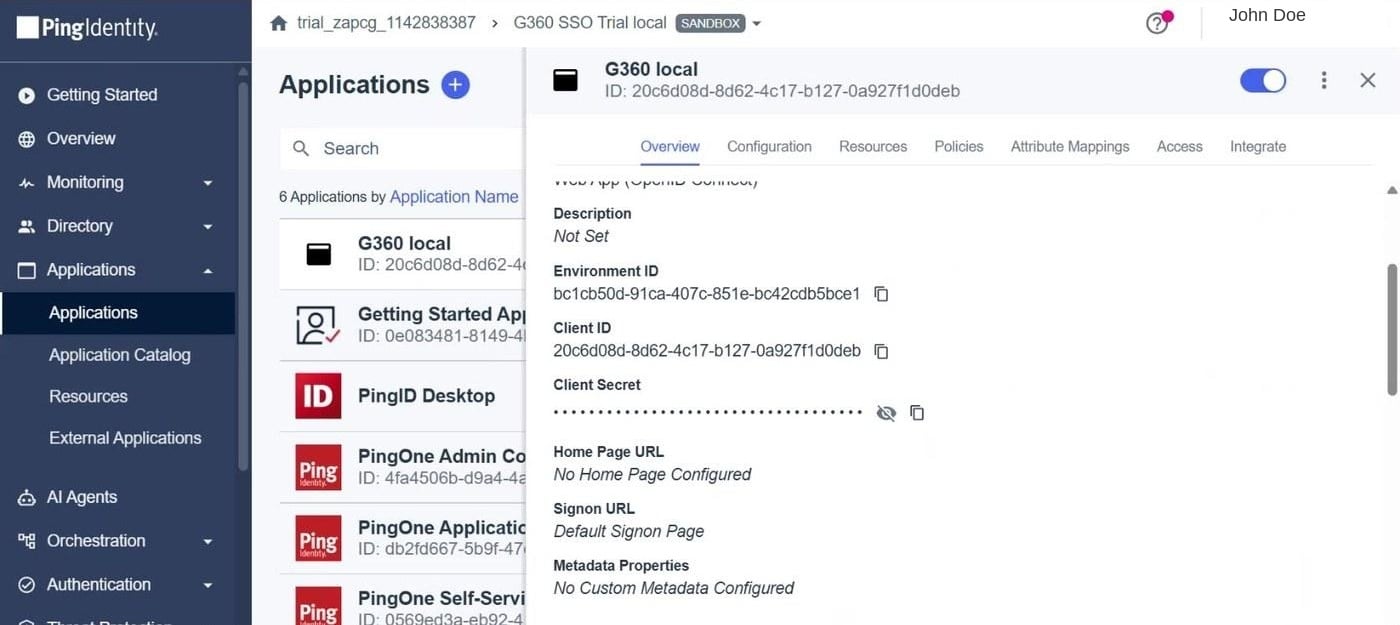
From the application, copy the **Client ID** and **Client Secret**.
 ## Issuer URL
Shown as the **OIDC Discovery Endpoint** on the application's **Overview** tab:
```text Issuer URL theme={null}
https://auth.pingone.//as/.well-known/openid-configuration
```
## Issuer URL
Shown as the **OIDC Discovery Endpoint** on the application's **Overview** tab:
```text Issuer URL theme={null}
https://auth.pingone.//as/.well-known/openid-configuration
```
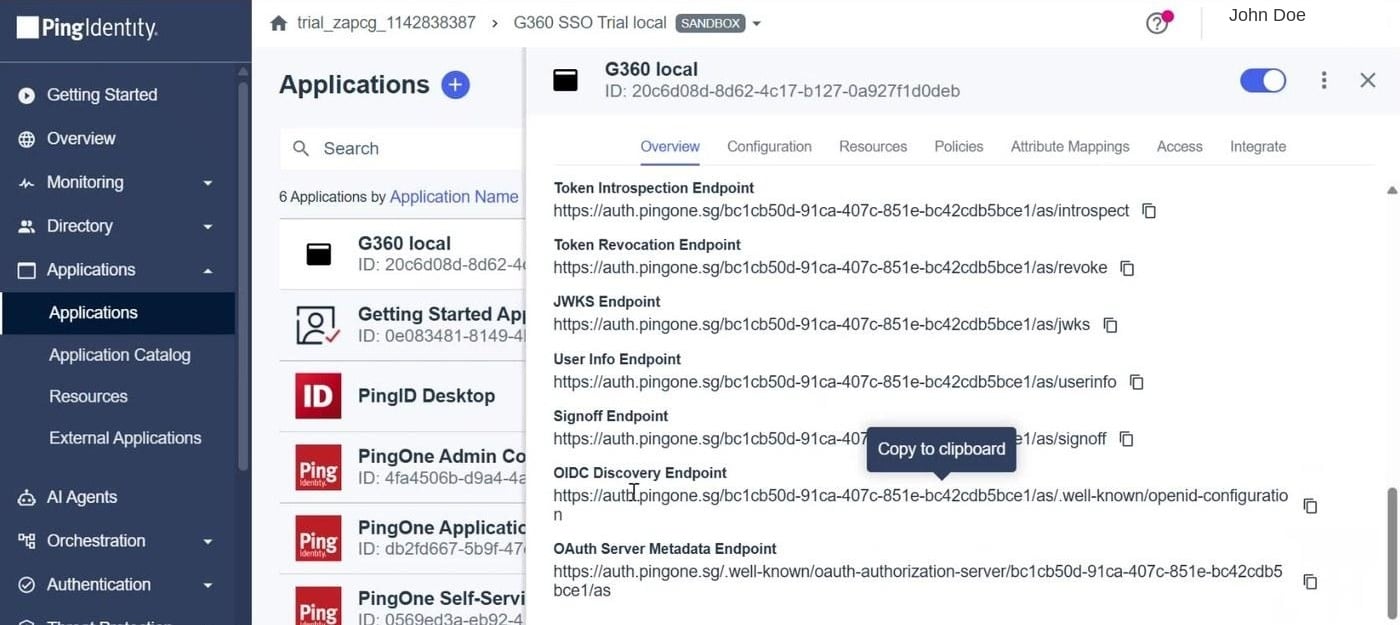 Two things people get wrong, both of which produce a 404 that looks like a wrong environment ID:
* **The region is part of the domain**, not a path segment — `auth.pingone.eu` for Europe, `auth.pingone.sg` for Singapore (its own region, **not** covered by Asia-Pacific's `.asia` domain).
* There is an **`/as/` segment** before `.well-known`.
Copy the value directly from the console with PingOne's copy control rather than typing it.
## Next: enter the details in G360
You now have the **Client ID**, **Client Secret** and **Issuer URL**. Return to [Step 5 of the setup guide](/g360/sso-setup#step-5-enter-the-details-in-g360) to enter them, test the connection, and save.
***
## SCIM provisioning
First, [generate a SCIM token in G360](/g360/sso-scim#step-1-generate-a-token-in-g360).
Open the **provisioning section of the same application** you created above and paste the token there, along with your G360 SCIM endpoint (shown alongside the token in G360's SCIM Provisioning section).
**Map the field that becomes SCIM's `userName` attribute to the user's email address.** PingOne defaults this to the **directory username** instead — a short login name such as `suraj_p` — which prevents it from ever matching a provisioned user to an existing G360 account.
The failure is quiet and never recovers on its own: PingOne searches for a user G360 doesn't hold, tries to create them, is told the email already exists, and repeats that on every sync — so no update or deprovision ever arrives either.
Paste the token **raw**, with no `Bearer` prefix — PingOne supplies that itself.
### Verify deprovisioning
Disabling or unassigning a user in PingOne moves their G360 account to **Suspended**, and they can no longer sign in.
Two things people get wrong, both of which produce a 404 that looks like a wrong environment ID:
* **The region is part of the domain**, not a path segment — `auth.pingone.eu` for Europe, `auth.pingone.sg` for Singapore (its own region, **not** covered by Asia-Pacific's `.asia` domain).
* There is an **`/as/` segment** before `.well-known`.
Copy the value directly from the console with PingOne's copy control rather than typing it.
## Next: enter the details in G360
You now have the **Client ID**, **Client Secret** and **Issuer URL**. Return to [Step 5 of the setup guide](/g360/sso-setup#step-5-enter-the-details-in-g360) to enter them, test the connection, and save.
***
## SCIM provisioning
First, [generate a SCIM token in G360](/g360/sso-scim#step-1-generate-a-token-in-g360).
Open the **provisioning section of the same application** you created above and paste the token there, along with your G360 SCIM endpoint (shown alongside the token in G360's SCIM Provisioning section).
**Map the field that becomes SCIM's `userName` attribute to the user's email address.** PingOne defaults this to the **directory username** instead — a short login name such as `suraj_p` — which prevents it from ever matching a provisioned user to an existing G360 account.
The failure is quiet and never recovers on its own: PingOne searches for a user G360 doesn't hold, tries to create them, is told the email already exists, and repeats that on every sync — so no update or deprovision ever arrives either.
Paste the token **raw**, with no `Bearer` prefix — PingOne supplies that itself.
### Verify deprovisioning
Disabling or unassigning a user in PingOne moves their G360 account to **Suspended**, and they can no longer sign in.
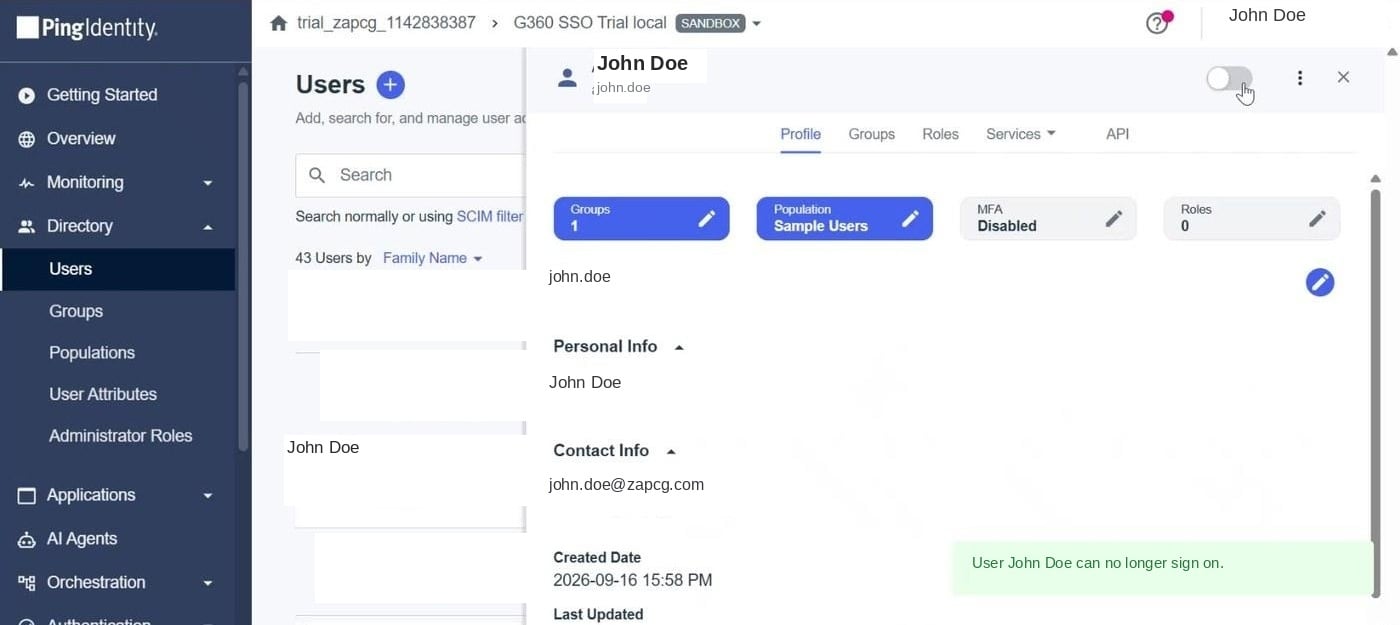 An existing G360 session survives until it expires — deactivation gates the **next** sign-in, not the current one. Test with a fresh private window.
***
## Provider-specific errors
If PingOne's own screen shows an error before you're redirected back to G360, the problem is on its side.
| Message | Meaning |
| ------------------------------------------------------ | ------------------------------------------------------------------------------------------ |
| `invalid_client` — "Unsupported authentication method" | Token Endpoint Authentication Method is set to **Client Secret Basic** instead of **Post** |
| Invalid redirect URI | The callback URL doesn't match exactly, including the trailing slash |
| Access denied, or the app cannot be found | The application is still disabled, or no population is assigned |
| User not found when signing in | The user is in a different environment from the application |
| The discovery URL 404s in a browser | Wrong environment ID, wrong region domain, or the `/as/` segment is missing |
For errors that appear **after** you're back in G360, see [Troubleshooting](/g360/sso-setup#troubleshooting).
An existing G360 session survives until it expires — deactivation gates the **next** sign-in, not the current one. Test with a fresh private window.
***
## Provider-specific errors
If PingOne's own screen shows an error before you're redirected back to G360, the problem is on its side.
| Message | Meaning |
| ------------------------------------------------------ | ------------------------------------------------------------------------------------------ |
| `invalid_client` — "Unsupported authentication method" | Token Endpoint Authentication Method is set to **Client Secret Basic** instead of **Post** |
| Invalid redirect URI | The callback URL doesn't match exactly, including the trailing slash |
| Access denied, or the app cannot be found | The application is still disabled, or no population is assigned |
| User not found when signing in | The user is in a different environment from the application |
| The discovery URL 404s in a browser | Wrong environment ID, wrong region domain, or the `/as/` segment is missing |
For errors that appear **after** you're back in G360, see [Troubleshooting](/g360/sso-setup#troubleshooting).