> ## Documentation Index
> Fetch the complete documentation index at: https://docs.heygarth.ai/llms.txt
> Use this file to discover all available pages before exploring further.
# SCIM Provisioning
> Keep your G360 user list automatically in sync with your identity provider — create, update, and deactivate accounts without manual work.
SCIM keeps your G360 user list automatically synchronized with your identity provider. Without it, an administrator has to add, update, and remove G360 accounts by hand.
SCIM is configured **after** SSO is working. If you haven't done that yet, start with [SSO Setup](/g360/sso-setup).
## Check availability first
**SCIM is not available on every provider or plan.** On some providers it is unavailable at any price; on others it needs a specific licence tier. Check this **before** planning a rollout around it.
| Provider | SSO | SCIM |
| --------------------------- | --------------------------------------- | ------------------------------------------------------------------------------------------------------------------------------------------------------- |
| **PingOne** | Available | Available — **one application handles both** |
| **OneLogin** | Available | Available — requires a **second, separate** application |
| **Okta** | Available | Only via the catalog **SCIM 2.0 Test App (OAuth Bearer Token)**, not your regular OIDC application |
| **Microsoft Entra ID** | Available on every tier, including Free | **Requires Entra ID P1 or P2** — not possible on Entra ID Free, regardless of how G360 is configured |
| **Google** | Available | **Not available under any configuration** — a Google platform limitation, not a setup gap |
| **Any other OIDC provider** | Available | Available if your provider can push SCIM 2.0 to an arbitrary endpoint with a bearer token — see [Other OIDC provider](/g360/sso-oidc#scim-provisioning) |
**If your organization runs Microsoft 365, check your licence before assuming SCIM is out of reach.** P1 is often already included in Microsoft 365 Business Premium, M365 E3, or EMS E3, even if nobody bought it separately. Office 365 E1–E3 and M365 Business Basic/Standard do not include it. Check the billing or licence pages in your Microsoft 365 admin center, or ask a Global or Billing Administrator about the self-service 30-day P1 trial.
## What SCIM syncs
With SCIM enabled, your identity provider can push the following changes into G360.
| Event in your identity provider | Result in G360 |
| --------------------------------------------------------------- | -------------------------------------------------------------------------------- |
| A new user is created and assigned to the G360 application | A matching G360 account is created automatically — no manual invitation required |
| A user's details are updated (for example, their name) | The change is reflected in their G360 account |
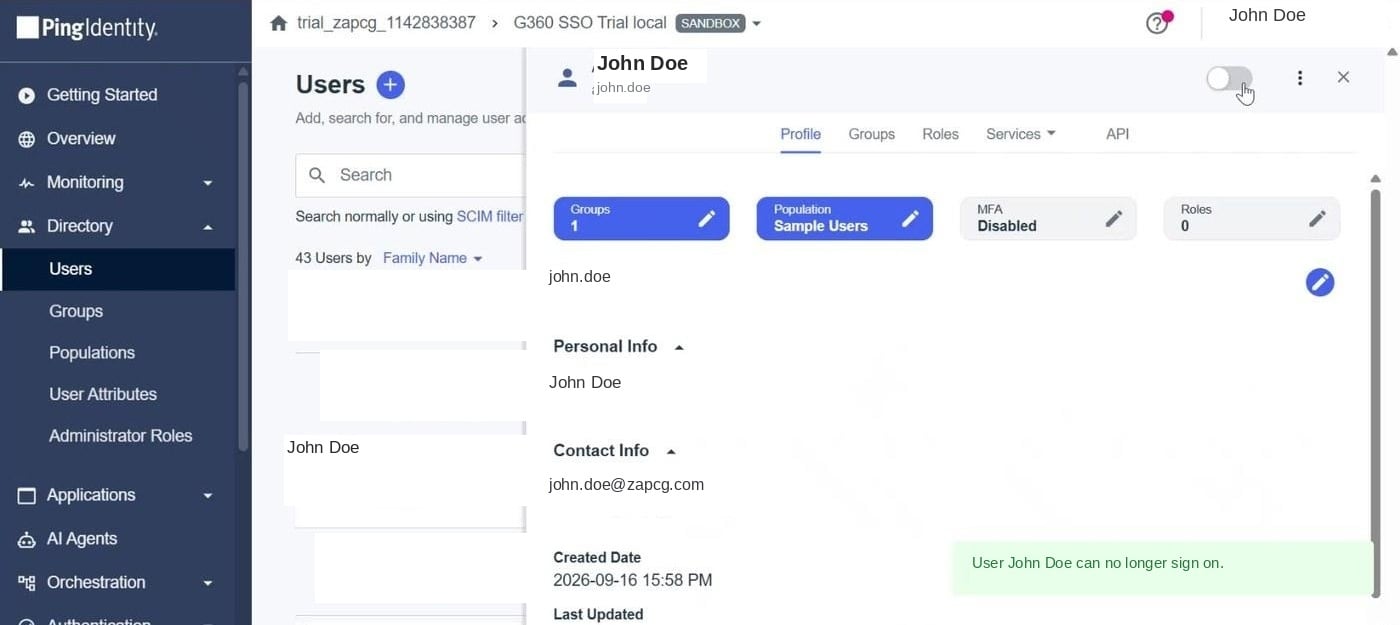
| A user is disabled, removed, or unassigned from the application | Their G360 account is set to **Suspended** and they can no longer sign in |
***
## Step 1: Generate a token in G360
Go to **Settings → SSO Settings**, scroll to **SCIM Provisioning**, and enable it.
Enter a **Label** describing where the token will be used — for example `Okta provisioning` — then click **Generate token**.
Copy the generated bearer token as soon as it appears and store it somewhere safe. **The token is shown only once.**
 **Paste the raw token only — do not type `Bearer` in front of it.** Your identity provider adds that prefix itself. Typing it yourself produces a silent authentication failure that looks identical to having pasted the wrong token. Watch for a trailing space from the copy-paste, too.
## Step 2: Configure your identity provider
Where you paste the token, and what else needs configuring, is different for every provider.
One application handles both SSO and SCIM.
Needs a second SCIM Provisioner application.
Needs the catalog SCIM 2.0 Test App.
Needs a second non-gallery application, and P1/P2.
Any provider that can push SCIM 2.0 to a bearer-token endpoint.
**A user must be assigned to every application that SSO and SCIM use — not just one.**
* Assigned to the **SSO** application but not SCIM → they can sign in normally, but **will never be deprovisioned when they leave**. This is a silent security gap, not just a setup inconvenience.
* Assigned to **SCIM** but not SSO → they're provisioned but can't sign in.
Whenever you grant or remove access, check every application involved.
**Map the field that becomes SCIM's `userName` attribute to the user's email address.** This is the single most common SCIM setup mistake, and it fails silently on every provider — see [Users are being created repeatedly](#users-are-being-created-repeatedly-or-updates-and-deprovisioning-never-arrive) below.
***
## Token management
**Only one SCIM token can be active at a time.** Generating a new token immediately revokes the current one, which breaks provisioning until the new token is pasted into your identity provider.
The token table shows:
| Column | What it shows |
| ----------------- | ----------------------------------------------------------------------------------------------------- |
| **Label** | The name given to the token. |
| **State** | Whether the token is **Active** or revoked. |
| **Lookup prefix** | A short identifier that lets you tell tokens apart without exposing the full value. |
| **Created** | When the token was generated. |
| **Created by** | Which administrator generated it. |
| **Last used** | The last time your identity provider used the token — useful for confirming SCIM is actively running. |
Click **Revoke** to invalidate a token immediately. Do this as soon as you suspect a token has been exposed, or when you decommission an identity provider.
***
## Troubleshooting
**Possible causes**
* SCIM provisioning is not enabled, or the SCIM token has been revoked.
* The employee has not been assigned to the G360 application — or, on Okta, OneLogin and Entra ID, to the separate **SCIM** application.
**Resolution**
* Check the **Last used** column in the token table. If the value is stale, the token may have been revoked by a newer one. Generate a new token and update it in the identity provider.
* Confirm the employee is assigned to every application that handles provisioning for your provider.
* Without SCIM, the account is created the first time the employee signs in through SSO (if new-user provisioning is enabled).
**Possible causes**
* SCIM provisioning is not enabled or is not running.
* The user was removed from the directory but never unassigned from the G360 application.
* The user was only ever assigned to your SSO application, never to the separate SCIM application (Okta, OneLogin, and Entra ID all use two applications).
**Resolution**
* Confirm SCIM is enabled and the token is still active.
* Disable or unassign the user in the identity provider. Their G360 account moves to **Suspended** and they can no longer sign in.
* Check the user is assigned to every application that matters for your provider, not just the one used for sign-in.
**Paste the raw token only — do not type `Bearer` in front of it.** Your identity provider adds that prefix itself. Typing it yourself produces a silent authentication failure that looks identical to having pasted the wrong token. Watch for a trailing space from the copy-paste, too.
## Step 2: Configure your identity provider
Where you paste the token, and what else needs configuring, is different for every provider.
One application handles both SSO and SCIM.
Needs a second SCIM Provisioner application.
Needs the catalog SCIM 2.0 Test App.
Needs a second non-gallery application, and P1/P2.
Any provider that can push SCIM 2.0 to a bearer-token endpoint.
**A user must be assigned to every application that SSO and SCIM use — not just one.**
* Assigned to the **SSO** application but not SCIM → they can sign in normally, but **will never be deprovisioned when they leave**. This is a silent security gap, not just a setup inconvenience.
* Assigned to **SCIM** but not SSO → they're provisioned but can't sign in.
Whenever you grant or remove access, check every application involved.
**Map the field that becomes SCIM's `userName` attribute to the user's email address.** This is the single most common SCIM setup mistake, and it fails silently on every provider — see [Users are being created repeatedly](#users-are-being-created-repeatedly-or-updates-and-deprovisioning-never-arrive) below.
***
## Token management
**Only one SCIM token can be active at a time.** Generating a new token immediately revokes the current one, which breaks provisioning until the new token is pasted into your identity provider.
The token table shows:
| Column | What it shows |
| ----------------- | ----------------------------------------------------------------------------------------------------- |
| **Label** | The name given to the token. |
| **State** | Whether the token is **Active** or revoked. |
| **Lookup prefix** | A short identifier that lets you tell tokens apart without exposing the full value. |
| **Created** | When the token was generated. |
| **Created by** | Which administrator generated it. |
| **Last used** | The last time your identity provider used the token — useful for confirming SCIM is actively running. |
Click **Revoke** to invalidate a token immediately. Do this as soon as you suspect a token has been exposed, or when you decommission an identity provider.
***
## Troubleshooting
**Possible causes**
* SCIM provisioning is not enabled, or the SCIM token has been revoked.
* The employee has not been assigned to the G360 application — or, on Okta, OneLogin and Entra ID, to the separate **SCIM** application.
**Resolution**
* Check the **Last used** column in the token table. If the value is stale, the token may have been revoked by a newer one. Generate a new token and update it in the identity provider.
* Confirm the employee is assigned to every application that handles provisioning for your provider.
* Without SCIM, the account is created the first time the employee signs in through SSO (if new-user provisioning is enabled).
**Possible causes**
* SCIM provisioning is not enabled or is not running.
* The user was removed from the directory but never unassigned from the G360 application.
* The user was only ever assigned to your SSO application, never to the separate SCIM application (Okta, OneLogin, and Entra ID all use two applications).
**Resolution**
* Confirm SCIM is enabled and the token is still active.
* Disable or unassign the user in the identity provider. Their G360 account moves to **Suspended** and they can no longer sign in.
* Check the user is assigned to every application that matters for your provider, not just the one used for sign-in.
 **Possible cause** — Your identity provider doesn't support SCIM on your current plan or application type.
**Resolution** — Check the [availability table](#check-availability-first). Google cannot do SCIM under any configuration. Entra ID needs a P1 or P2 licence — Entra ID Free cannot provision at all, even if everything in G360 is configured correctly. Okta needs the specific catalog application, not your regular OIDC integration.
**Possible cause** — Your identity provider's `userName` field for SCIM isn't mapped to the user's email address.
**Resolution** — Open your provider's SCIM attribute mapping and confirm the field mapped to `userName` is set to **email**, not a directory username or display name.
Why it fails so quietly: the provider searches G360 for a user it doesn't hold, finds nothing, tries to create them, and is told the email already exists. It repeats that on every sync and never learns G360's record for that user — so **no update and no deprovision ever arrives either**.
This has to be fixed going forward. Accounts already created with the wrong mapping may need cleaning up manually with your G360 administrator.
**Possible cause** — Your identity provider doesn't support SCIM on your current plan or application type.
**Resolution** — Check the [availability table](#check-availability-first). Google cannot do SCIM under any configuration. Entra ID needs a P1 or P2 licence — Entra ID Free cannot provision at all, even if everything in G360 is configured correctly. Okta needs the specific catalog application, not your regular OIDC integration.
**Possible cause** — Your identity provider's `userName` field for SCIM isn't mapped to the user's email address.
**Resolution** — Open your provider's SCIM attribute mapping and confirm the field mapped to `userName` is set to **email**, not a directory username or display name.
Why it fails so quietly: the provider searches G360 for a user it doesn't hold, finds nothing, tries to create them, and is told the email already exists. It repeats that on every sync and never learns G360's record for that user — so **no update and no deprovision ever arrives either**.
This has to be fixed going forward. Accounts already created with the wrong mapping may need cleaning up manually with your G360 administrator.