> ## Documentation Index
> Fetch the complete documentation index at: https://docs.heygarth.ai/llms.txt
> Use this file to discover all available pages before exploring further.
# Getting started
> Install GAssist in MS Teams, link your Git provider, and start managing pull requests from chat.
## Install GAssist in MS Teams
Add the GAssist app to your MS Teams workspace from the Teams app catalogue. Search for **GAssist** and install it.
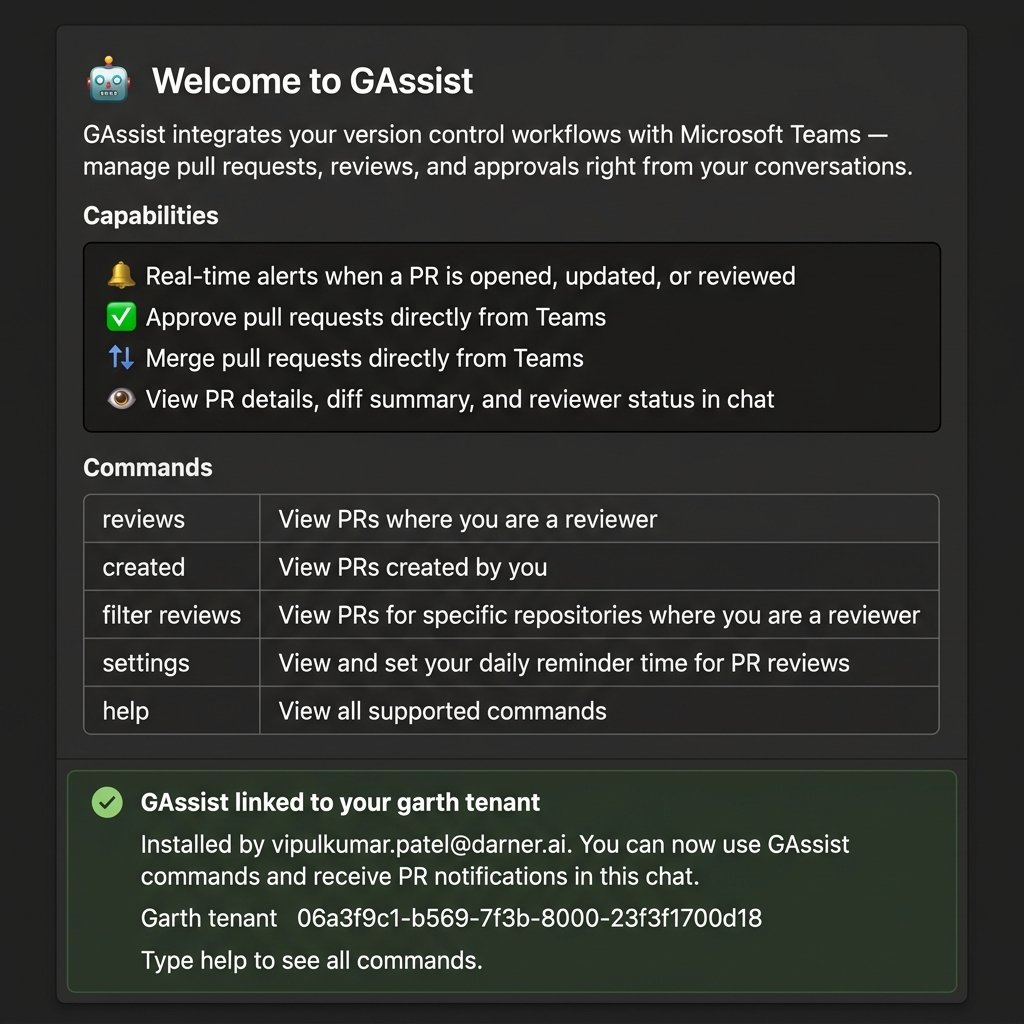
Once installed, GAssist sends you a welcome card that summarises its capabilities and available commands, and confirms it is linked to your Garth tenant.
 ## Link your Git account
GAssist immediately follows up with an authentication card. Select your Git provider to complete the OAuth sign-in — no command required.
## Link your Git account
GAssist immediately follows up with an authentication card. Select your Git provider to complete the OAuth sign-in — no command required.
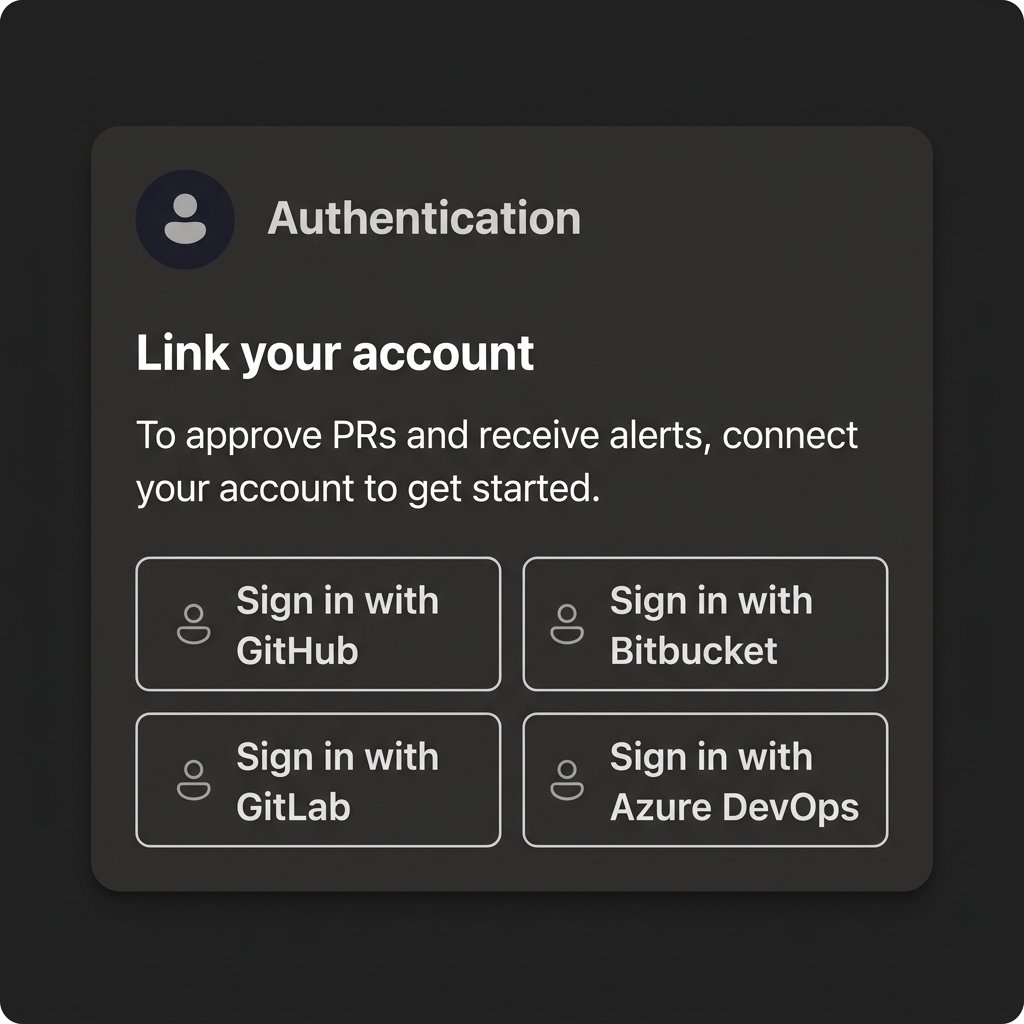 GAssist supports the following Git providers:
* **GitHub**
* **Azure DevOps**
* **Bitbucket**
* **GitLab**
## Start managing PRs
Once your Git account is linked, you can start interacting with your pull requests directly from MS Teams.
| Type this | To do this |
| ---------------- | --------------------------------------- |
| `reviews` | See all PRs assigned to you for review |
| `created` | See all PRs you have opened |
| `filter reviews` | Filter your review PRs by repository |
| `help` | See the full list of supported commands |
Type `help` at any time to see all supported commands directly in chat.
## Next steps
Full list of GAssist commands for managing PRs and configuring notifications.
Configure which PR events trigger notifications in your channel.
GAssist supports the following Git providers:
* **GitHub**
* **Azure DevOps**
* **Bitbucket**
* **GitLab**
## Start managing PRs
Once your Git account is linked, you can start interacting with your pull requests directly from MS Teams.
| Type this | To do this |
| ---------------- | --------------------------------------- |
| `reviews` | See all PRs assigned to you for review |
| `created` | See all PRs you have opened |
| `filter reviews` | Filter your review PRs by repository |
| `help` | See the full list of supported commands |
Type `help` at any time to see all supported commands directly in chat.
## Next steps
Full list of GAssist commands for managing PRs and configuring notifications.
Configure which PR events trigger notifications in your channel.