> ## Documentation Index
> Fetch the complete documentation index at: https://docs.heygarth.ai/llms.txt
> Use this file to discover all available pages before exploring further.
# Garth admin setup
> Install the GAssist app in your Slack workspace. A one-time setup performed by a Garth admin.
Before members can use GAssist in Slack, a Garth admin installs the GAssist app into your organization's Slack workspace. This links your Slack workspace to your Garth tenant and authorizes GAssist to post pull request activity and respond to commands.
This setup is required only once per Slack workspace. After you complete it, any member of the workspace can start using GAssist and link their Git account.
## Before you start
* You need Garth admin access to [app.heygarth.ai](https://app.heygarth.ai/).
* You need permission to install apps in your Slack workspace. If your workspace restricts app installs, a Slack Workspace Owner or Admin may need to approve the request.
## Install GAssist in Slack
Sign in to [app.heygarth.ai](https://app.heygarth.ai/) with your Garth admin account.
Go to [Settings > Integrations](https://app.heygarth.ai/settings/integrations).
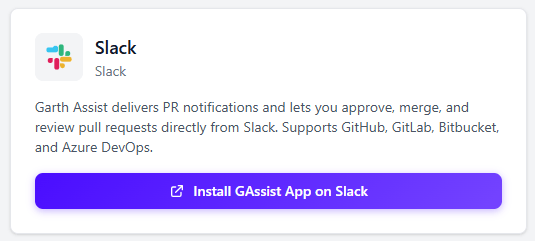
In the **Slack** section, select **Install GAssist App on Slack**.
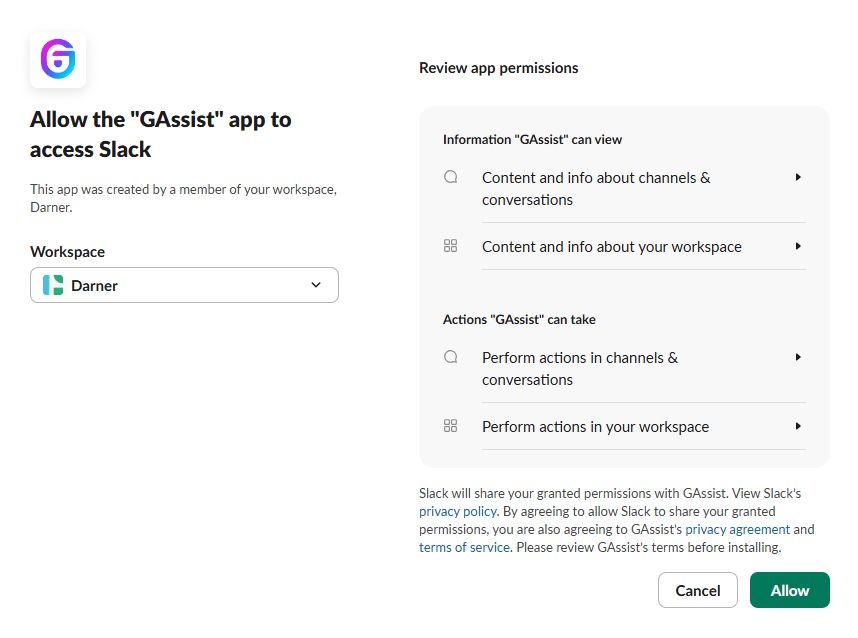
 Slack opens an authorization screen listing the permissions GAssist needs. Confirm the workspace, review the permissions, and select **Allow** to complete the installation.
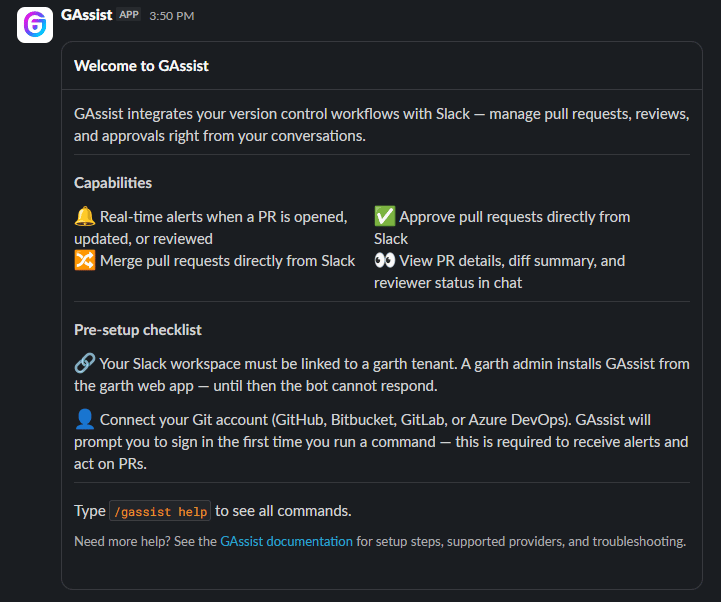
 Once installed, GAssist posts a **Welcome to GAssist** card confirming the app is connected. Your Slack workspace is now linked to your Garth tenant, and members can start using GAssist.
 ## Next step
Share the [Overview](/gassist/slack/getting-started) with your team so members can open GAssist and link their Git account.
## Next step
Share the [Overview](/gassist/slack/getting-started) with your team so members can open GAssist and link their Git account.