> ## Documentation Index
> Fetch the complete documentation index at: https://docs.heygarth.ai/llms.txt
> Use this file to discover all available pages before exploring further.
# Getting started with Slack
> Install GAssist for your organization, then bring pull request management into Slack.
Bring pull request management into Slack with GAssist. A **Garth admin** installs GAssist into your Slack workspace in a one-time setup. After that, members of the workspace can use GAssist to manage their pull requests directly from Slack.
The admin setup only needs to happen once per Slack workspace. After it is complete, any member of the workspace can start using GAssist.
## Garth admin
Install GAssist into your Slack workspace. Required once, before members can use GAssist.
## Workspace members
Once your Garth admin has installed GAssist, open it in Slack to start managing your pull requests.
Search for **GAssist** in the Slack search bar, or go to **Tools > Apps**, select **GAssist**, and choose **Open App**.
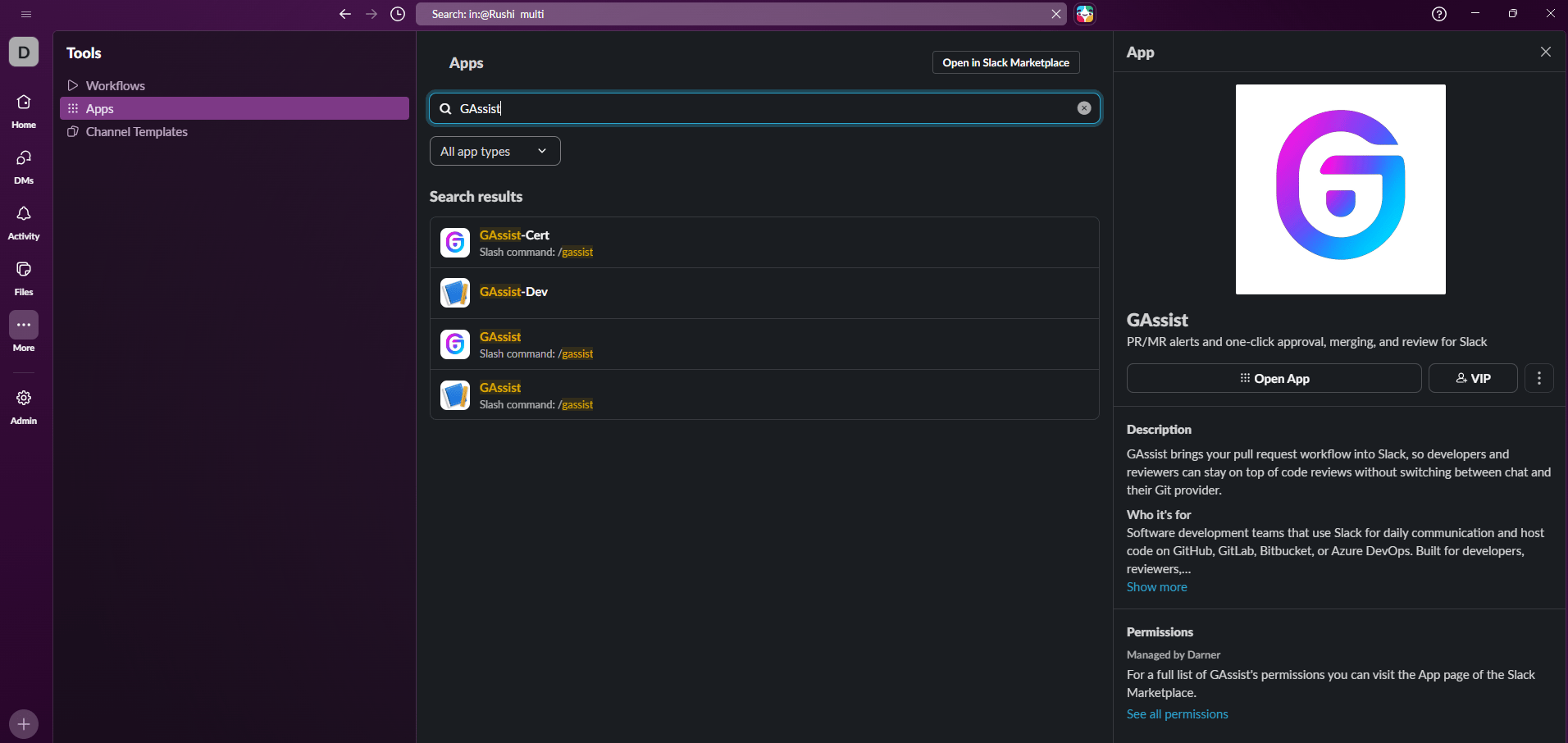 Open a direct message with GAssist and start a conversation. Type `/gassist help` to see all available commands.
The first time you run a command, GAssist prompts you to connect your Git account. Select your provider — **GitHub**, **Bitbucket**, **GitLab**, or **Azure DevOps** — to complete the OAuth sign-in. This is required to receive alerts and act on pull requests.
Open a direct message with GAssist and start a conversation. Type `/gassist help` to see all available commands.
The first time you run a command, GAssist prompts you to connect your Git account. Select your provider — **GitHub**, **Bitbucket**, **GitLab**, or **Azure DevOps** — to complete the OAuth sign-in. This is required to receive alerts and act on pull requests.