> ## Documentation Index
> Fetch the complete documentation index at: https://docs.heygarth.ai/llms.txt
> Use this file to discover all available pages before exploring further.
# GitLab
> Connect Garth to your GitLab.com repositories using a Group Access Token or Personal Access Token for automated code reviews.
Garth supports two token types for GitLab authentication. Use a **Group Access Token** if you are on GitLab Premium or Ultimate — it creates a managed bot user and simplifies permission management across the organization. Otherwise, use a **Personal Access Token** from a dedicated service account.
## Step 1: Create an access token
Group Access Tokens natively generate a bot user, making permission management much simpler across the organization.
Open the target group in the GitLab interface.
In the sidebar, go to **Settings → Access Tokens**.
Assign **Developer** access and select the following scopes: `api`, `read_api`, `read_repository`, `write_repository`, `read_user`. Click **Generate**.
GitLab generates a random bot name such as `group_102_bot_xyz`. Group Administrators can rename the bot or update its avatar via the GitLab API to give Garth's comments a distinct identity.
Do not use a personal user account. Code reviews will be attributed to the token owner. Create a standalone service account named `GPRABot` exclusively for this integration.
The service account must be added to the relevant project as a **Maintainer** — this role is required to manage webhooks.
Log into GitLab using the dedicated Garth service account.
Click your avatar → **Edit Profile** → **Access Tokens**.
Give the token a clear name such as `Garth Bot Key`. You can optionally set an expiry date; leaving it blank defaults to 365 days. If the token expires, Garth stops functioning until you replace it in the dashboard.
Enable the following scopes:
* `api`
* `read_api`
* `read_user`
* `read_repository`
* `write_repository`
Click **Create Personal Access Token** and copy the token immediately. **GitLab will not display it again.**
## Step 2: Link to Garth
Log into the [Garth dashboard](https://app.heygarth.ai/) and navigate to [Settings → Integrations](https://app.heygarth.ai/settings/integrations).
Select the **GitLab** tab. Enter your **GitLab URL** (`https://gitlab.com`)
and the **Access Token** you just created, then click **Validate**.
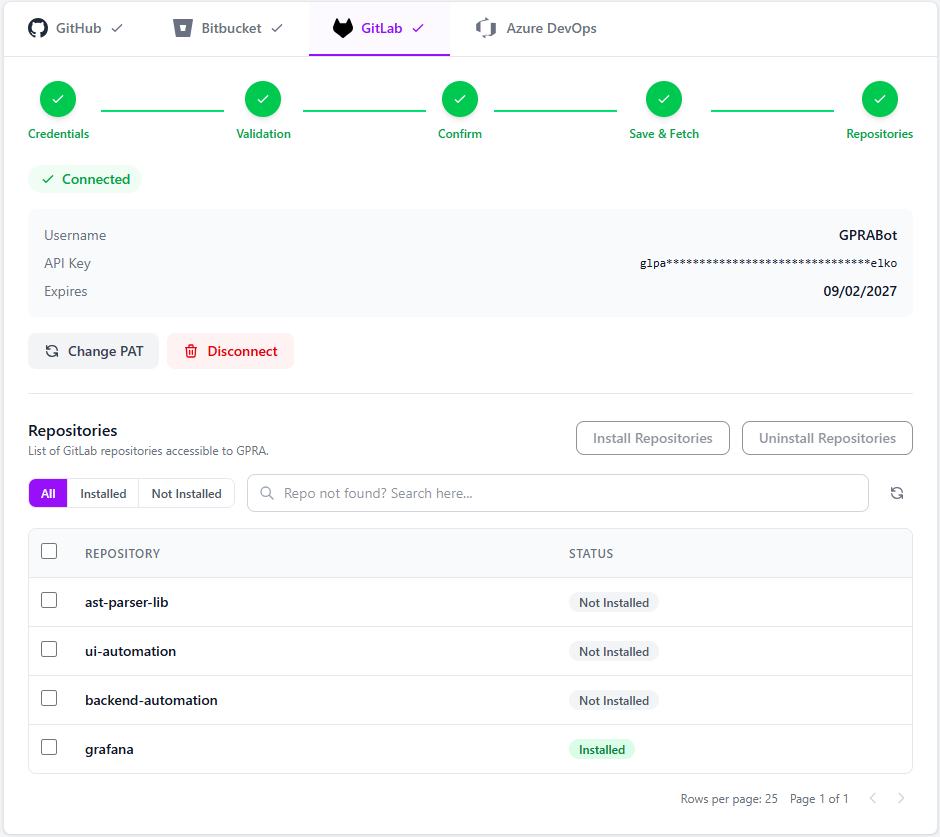
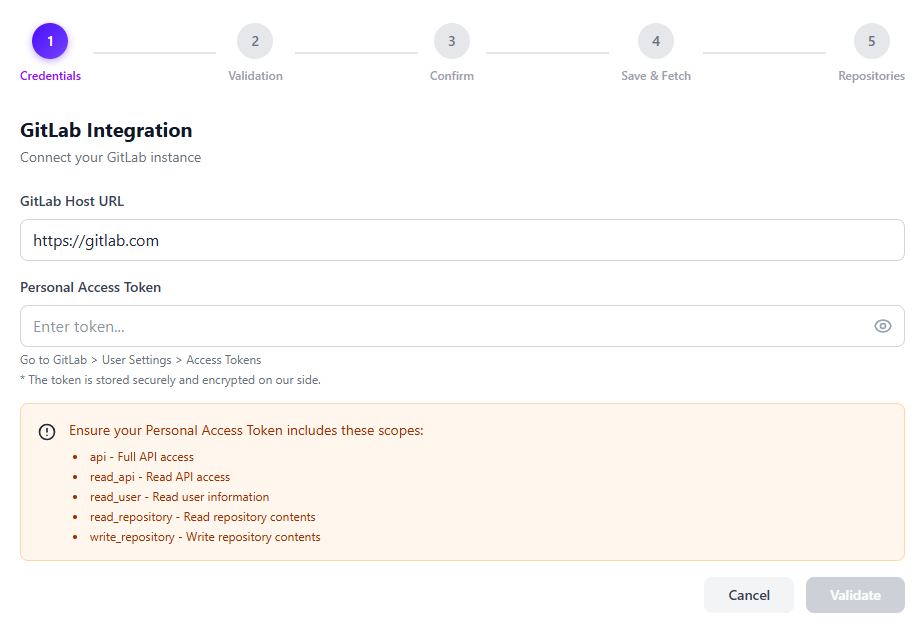 After validation, select the repositories you want Garth to review and click **Install Repositories**.
**Automatic webhooks:** Garth installs webhooks on selected repositories automatically. No manual webhook configuration is required. Webhooks are also removed automatically when you uninstall a repository.
After validation, select the repositories you want Garth to review and click **Install Repositories**.
**Automatic webhooks:** Garth installs webhooks on selected repositories automatically. No manual webhook configuration is required. Webhooks are also removed automatically when you uninstall a repository.
 ## Step 3: Activate and configure the repository
After installation, activate each repository under [Agent Setup → PR Review → Repository Setup](https://app.heygarth.ai/agents/pr-review/repository-setup).
Once a repository is activated, you can configure the following options:
1. **Files to Exclude** — specify file patterns that Garth should skip during reviews.
2. **Source Branches to Exclude** — exclude MRs originating from certain branches.
3. **Destination Branches to Exclude** — exclude MRs targeting certain branches.
4. **Auto Review** — enable or disable automatic reviews for new MRs on this repository.
5. **Repository PR Review Guidelines** — define custom review guidelines specific to this repository.
## Troubleshooting
If Garth is not accessing repositories or reviewing merge requests:
1. **Check webhook status** — go to the project's settings in GitLab under **Webhooks** and verify the Garth webhook exists and is active.
2. **Manually delete the webhook** if it exists but is not working.
3. **Refresh the repository page** in the Garth app.
4. **Reinstall the webhook** — untoggle and re-toggle the repository in the Garth dashboard.
If you cannot install Garth on a repository:
1. **Verify group/project membership** — the service account must hold at least `Maintainer` access to the target project to manage webhooks.
2. **Check token scopes** — confirm all required scopes (`api`, `read_api`, `read_user`, `read_repository`, `write_repository`) are present on the token.
3. **Re-validate the token** — go to **Settings → Integrations → GitLab** in Garth and re-enter your credentials.
4. **Toggle the repository** — uninstall and reinstall the repository from the Garth app to force a fresh webhook setup.
If Garth is installed but you are not receiving any reviews on your merge requests:
1. **Check repository activation** — go to [Agent Setup → PR Review → Repository Setup](https://app.heygarth.ai/agents/pr-review/repository-setup) and confirm the repository is activated.
2. **Verify Auto Review is enabled** — ensure the **Auto Review** toggle is turned on for the repository.
3. **Check branch exclusions** — confirm the source or destination branch of your MR is not listed under **Source Branches to Exclude** or **Destination Branches to Exclude**.
4. **Check file exclusions** — verify that the files changed in your MR are not covered by patterns in **Files to Exclude**.
If you receive authentication or permission errors:
1. **Check token expiry** — GitLab Personal Access Tokens expire based on the date you set (or after 365 days by default). Regenerate and update the token in Garth if it has lapsed.
2. **Confirm the token type** — use either a **Group Access Token** with `api` scope and `Maintainer` role, or a **Personal Access Token** from the dedicated service account — not a personal user account.
3. **Verify Group Owner status** — the Garth user initiating the connection must hold GitLab Group Owner status.
4. **Re-authenticate** — update the token in **Settings → Integrations → GitLab** within Garth and re-link with a freshly generated token.
## Step 3: Activate and configure the repository
After installation, activate each repository under [Agent Setup → PR Review → Repository Setup](https://app.heygarth.ai/agents/pr-review/repository-setup).
Once a repository is activated, you can configure the following options:
1. **Files to Exclude** — specify file patterns that Garth should skip during reviews.
2. **Source Branches to Exclude** — exclude MRs originating from certain branches.
3. **Destination Branches to Exclude** — exclude MRs targeting certain branches.
4. **Auto Review** — enable or disable automatic reviews for new MRs on this repository.
5. **Repository PR Review Guidelines** — define custom review guidelines specific to this repository.
## Troubleshooting
If Garth is not accessing repositories or reviewing merge requests:
1. **Check webhook status** — go to the project's settings in GitLab under **Webhooks** and verify the Garth webhook exists and is active.
2. **Manually delete the webhook** if it exists but is not working.
3. **Refresh the repository page** in the Garth app.
4. **Reinstall the webhook** — untoggle and re-toggle the repository in the Garth dashboard.
If you cannot install Garth on a repository:
1. **Verify group/project membership** — the service account must hold at least `Maintainer` access to the target project to manage webhooks.
2. **Check token scopes** — confirm all required scopes (`api`, `read_api`, `read_user`, `read_repository`, `write_repository`) are present on the token.
3. **Re-validate the token** — go to **Settings → Integrations → GitLab** in Garth and re-enter your credentials.
4. **Toggle the repository** — uninstall and reinstall the repository from the Garth app to force a fresh webhook setup.
If Garth is installed but you are not receiving any reviews on your merge requests:
1. **Check repository activation** — go to [Agent Setup → PR Review → Repository Setup](https://app.heygarth.ai/agents/pr-review/repository-setup) and confirm the repository is activated.
2. **Verify Auto Review is enabled** — ensure the **Auto Review** toggle is turned on for the repository.
3. **Check branch exclusions** — confirm the source or destination branch of your MR is not listed under **Source Branches to Exclude** or **Destination Branches to Exclude**.
4. **Check file exclusions** — verify that the files changed in your MR are not covered by patterns in **Files to Exclude**.
If you receive authentication or permission errors:
1. **Check token expiry** — GitLab Personal Access Tokens expire based on the date you set (or after 365 days by default). Regenerate and update the token in Garth if it has lapsed.
2. **Confirm the token type** — use either a **Group Access Token** with `api` scope and `Maintainer` role, or a **Personal Access Token** from the dedicated service account — not a personal user account.
3. **Verify Group Owner status** — the Garth user initiating the connection must hold GitLab Group Owner status.
4. **Re-authenticate** — update the token in **Settings → Integrations → GitLab** within Garth and re-link with a freshly generated token.