

Copy the callback URL from G360 first. Go to Settings → SSO Settings, turn on Enable single sign-on, and copy the read-only Callback URL from the Identity Provider section. You paste it into PingOne below.
PingOne is the only provider where one application handles both SSO and SCIM. Everything below stays within a single app.
Create the OIDC application
Console: your PingOne environment — use your production (or sandbox) environment, not the Administrators environment, which is for managing the tenant rather than running applications. Applications → Applications →+ → OIDC Web App.
Grant the scopes explicitly
On the application’s grant/scopes screen, attachopenid, profile and email from the openid resource.
Enable the application and grant access
Collect the credentials
From the application, copy the Client ID and Client Secret.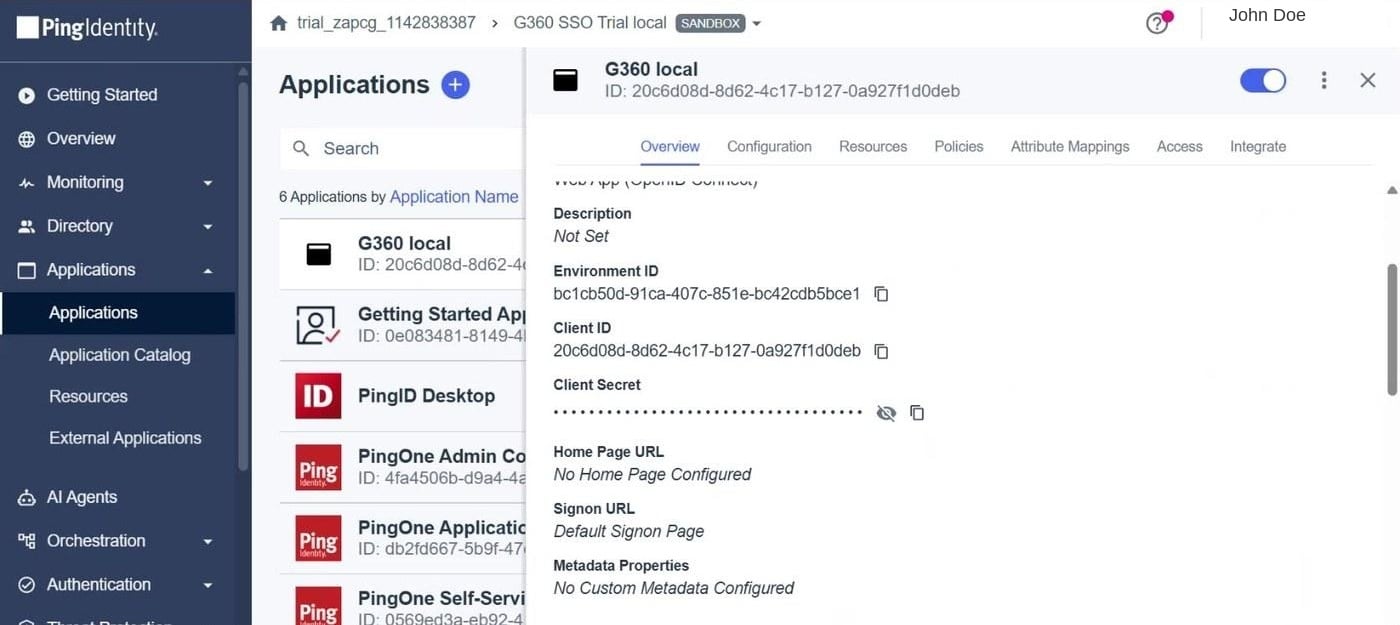
PingOne application overview showing the Environment ID, Client ID, and Client Secret.
Issuer URL
Shown as the OIDC Discovery Endpoint on the application’s Overview tab:Issuer URL
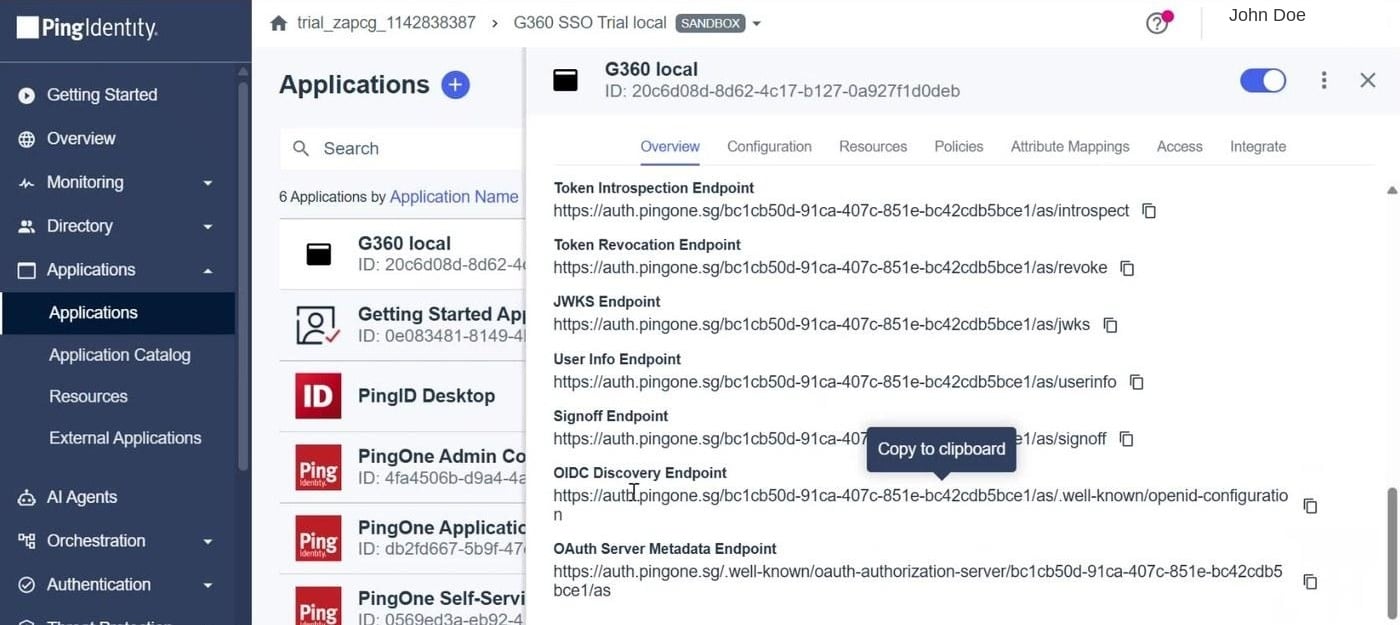
The OIDC Discovery Endpoint listed on the PingOne application's Overview tab.
Next: enter the details in G360
You now have the Client ID, Client Secret and Issuer URL. Return to Step 5 of the setup guide to enter them, test the connection, and save.SCIM provisioning
First, generate a SCIM token in G360. Open the provisioning section of the same application you created above and paste the token there, along with your G360 SCIM endpoint (shown alongside the token in G360’s SCIM Provisioning section). Paste the token raw, with noBearer prefix — PingOne supplies that itself.
Verify deprovisioning
Disabling or unassigning a user in PingOne moves their G360 account to Suspended, and they can no longer sign in.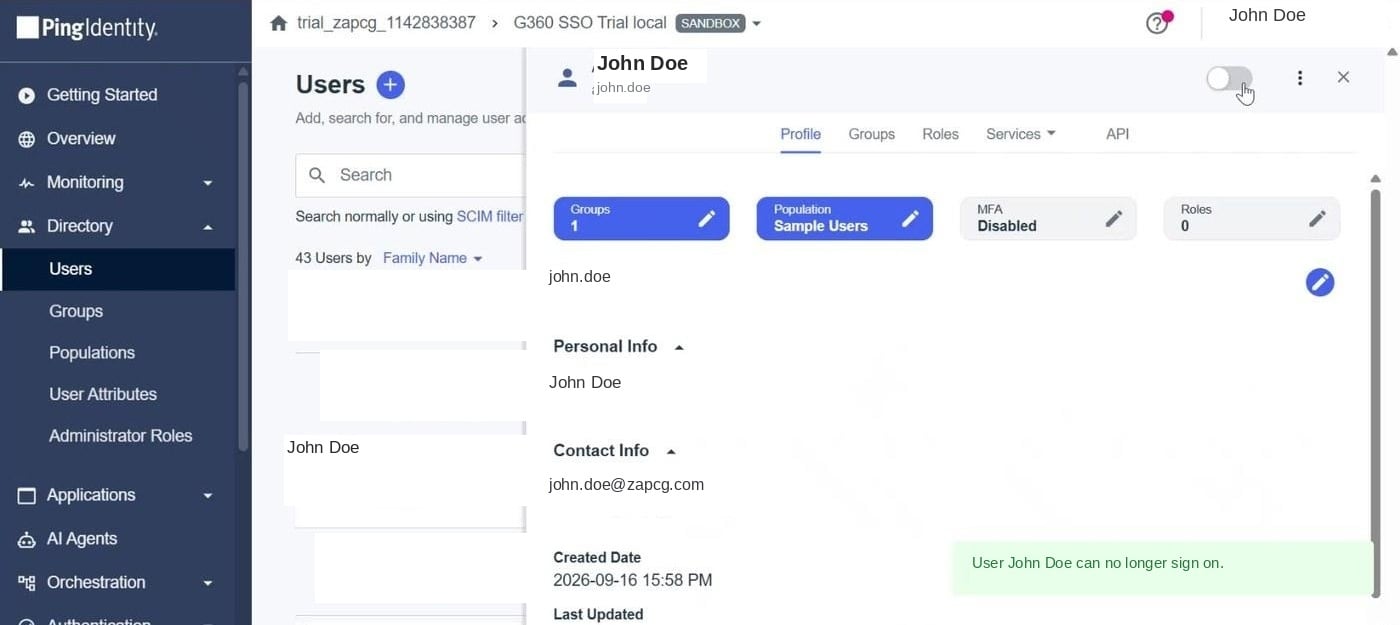
Disabling a user's sign-on access in PingOne.
An existing G360 session survives until it expires — deactivation gates the next sign-in, not the current one. Test with a fresh private window.
Provider-specific errors
If PingOne’s own screen shows an error before you’re redirected back to G360, the problem is on its side.
For errors that appear after you’re back in G360, see Troubleshooting.