Create a dedicated Azure DevOps service account for Garth rather than
binding the integration to a personal staff account.
1
Register the account
Log out of your personal Azure DevOps account and create a new user specifically for this integration.
2
Finalize the profile
Set the username to something identifiable, such as GPRABot. - Use a team
alias email rather than a personal address. - Enable Two-Step Verification
(2FA) if required by your company policy.
3
Associate with your organization
Add the new service account to your primary Azure DevOps organization and the projects you want Garth to analyze.
The PAT account must have the Project Administrators role on every project you want to integrate. Without it, repository installation and webhook setup will fail.
When you rotate the service account later, update the token in Garth and
re-enable repository tracking — no other reconfiguration is needed.
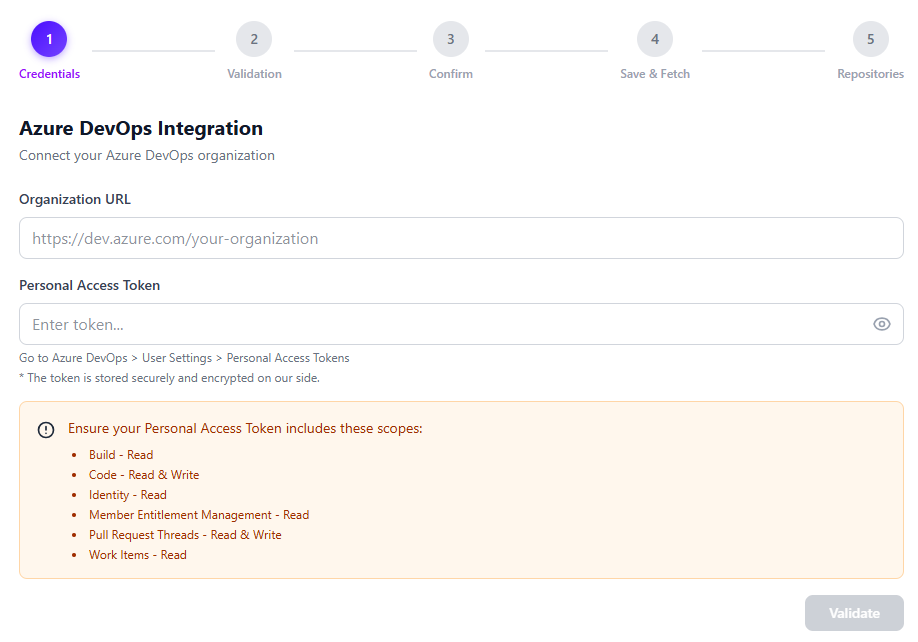
Select the Azure DevOps tab. Enter your Azure DevOps URL
(https://dev.azure.com/your-organization), Username (the service
account’s email), and Personal Access Token, then click Validate.
Enter your Azure DevOps URL, username, and Personal Access Token, then click Validate
3
Install repositories
After validation, select the repositories you want Garth to review and click Install Repositories.
Automatic webhooks: Garth installs webhooks on selected Azure DevOps projects automatically. No manual webhook configuration is required. Webhooks are also removed automatically when you uninstall a repository.
Verify Auto Review is enabled — ensure the Auto Review toggle is turned on for the repository.
Check branch exclusions — confirm the source or destination branch of your PR is not listed under Source Branches to Exclude or Destination Branches to Exclude.
Check file exclusions — verify that the files changed in your PR are not covered by patterns in Files to Exclude.
Authentication errors
If you receive authentication or permission errors:
Check token expiry — Azure DevOps PATs expire based on the timeframe you set; regenerate and update the token in Garth if it has lapsed.
Confirm Entra ID is enabled — your organization must have Entra ID (formerly Azure Active Directory) active for the integration to function.
Verify Microsoft App Consent — confirm your IT administrator has approved the Garth application in the Microsoft consent portal if administrative approval is required.
Re-authenticate — update the PAT in Settings → Integrations → Azure DevOps within Garth and re-link with a freshly generated token.