

This setup is required only once per organization. After you complete it, MS Teams users install GAssist directly from the Teams app store.
Before you start
- You need Garth admin access to app.heygarth.ai.
- You need permission to add apps in your organization’s Microsoft Teams.
- Use the Microsoft Teams desktop app for this setup.
Link Garth with Microsoft Teams
1
Sign in to Garth
Sign in to app.heygarth.ai with your Garth admin account.
2
Open the Integrations settings
Go to Settings > Integrations.
3
Install Microsoft Teams
In the GAssist section, select Install Microsoft Teams.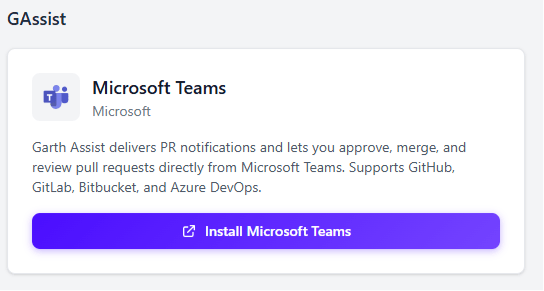
4
Add the GAssist app in Teams
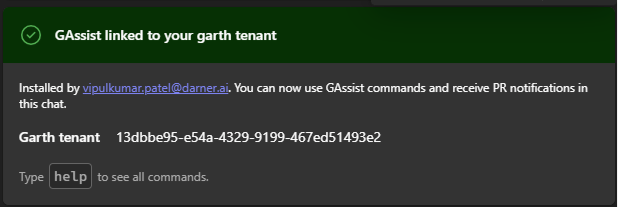
You are redirected to the GAssist app, which opens the Microsoft Teams desktop app and shows the GAssist app dialog. Select Add to complete the installation.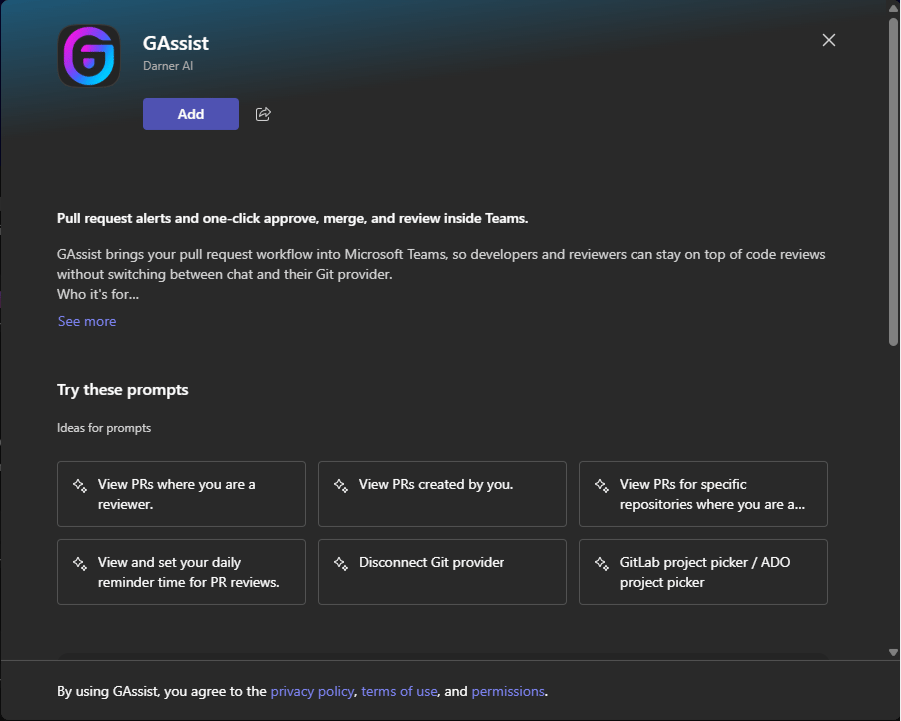
Next step
Install in MS Teams
Share this page with your team. Each user installs GAssist from the Teams app store and links their own Git account.