

Before you install, a Garth admin in your organization must complete the Garth admin setup. This one-time step links your Garth tenant with Microsoft Teams.
Install GAssist
1
Open the Apps menu in Teams
Open the Microsoft Teams desktop app and open the Apps menu.
2
Find GAssist
Search for GAssist and select it from the results.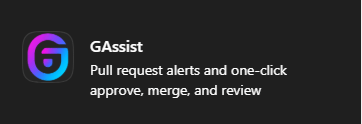
3
Add GAssist
Select Add to install GAssist.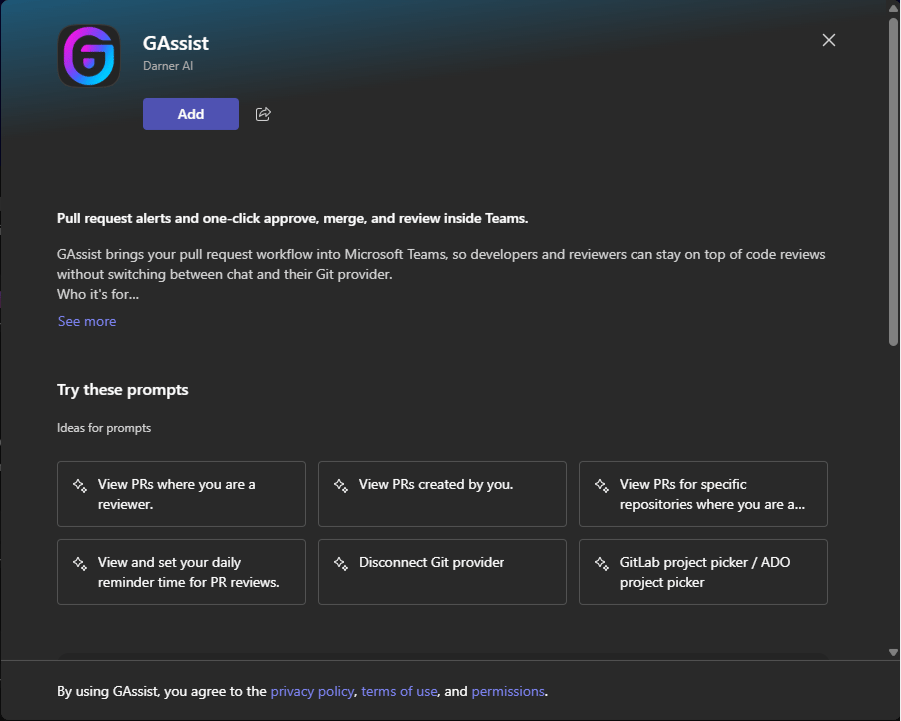
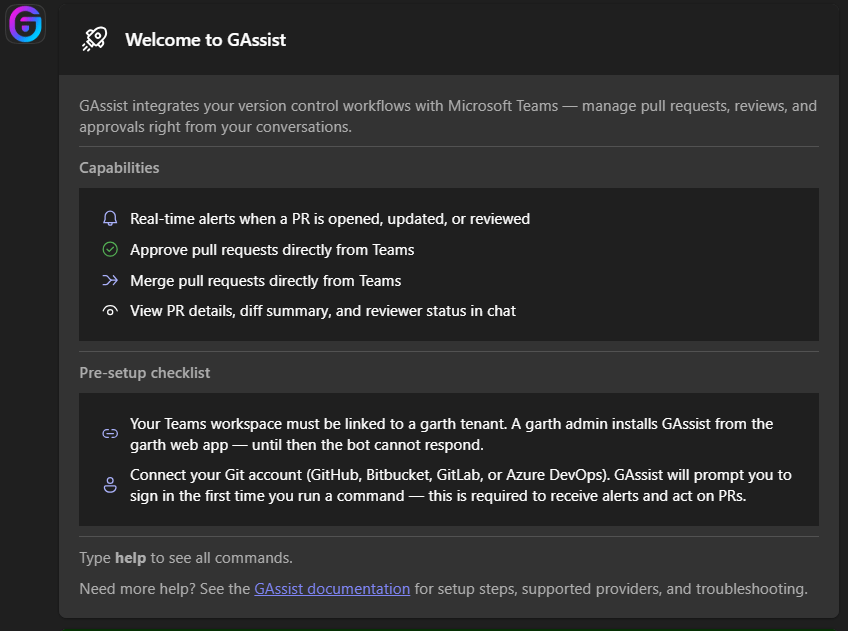
Link your Git account
GAssist follows up with an authentication card. Select your Git provider to complete the OAuth sign-in — no command required.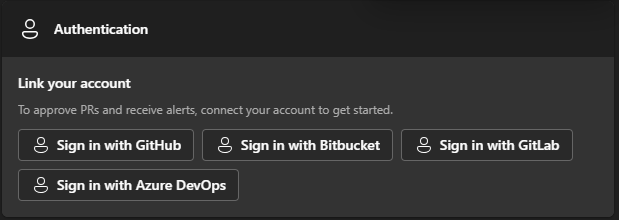
- GitHub
- Azure DevOps
- Bitbucket
- GitLab
Start managing PRs
Once your Git account is linked, you can interact with your pull requests directly from MS Teams.Next steps
Commands reference
Full list of GAssist commands for managing PRs and configuring notifications.
Notifications
Configure which PR events trigger notifications in your channel.