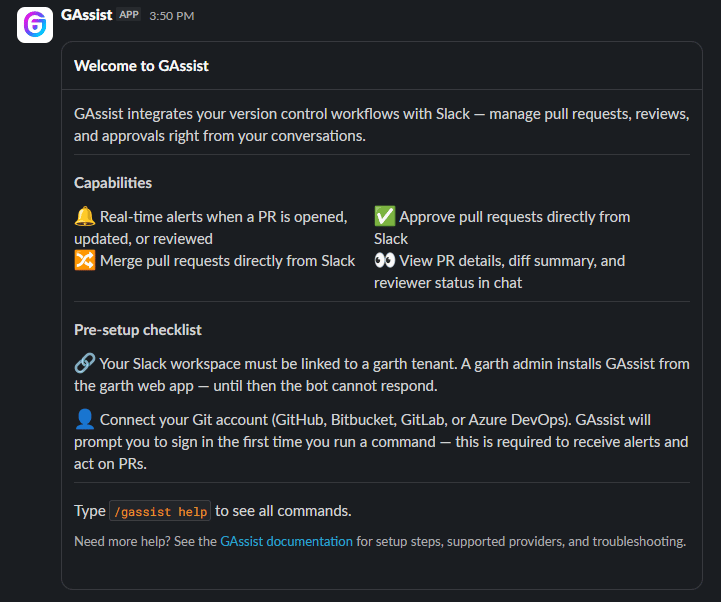
This setup is required only once per Slack workspace. After you complete it, any member of the workspace can start using GAssist and link their Git account.
Before you start
- You need Garth admin access to app.heygarth.ai.
- You need permission to install apps in your Slack workspace. If your workspace restricts app installs, a Slack Workspace Owner or Admin may need to approve the request.
Install GAssist in Slack
1
Sign in to Garth
Sign in to app.heygarth.ai with your Garth admin account.
2
Open the Integrations settings
Go to Settings > Integrations.
3
Install GAssist App on Slack
In the Slack section, select Install GAssist App on Slack.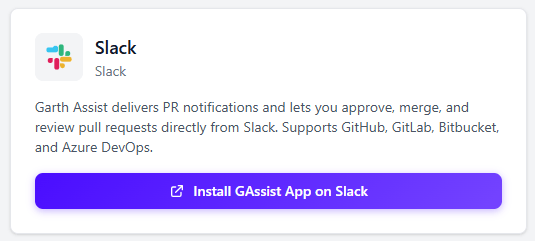
4
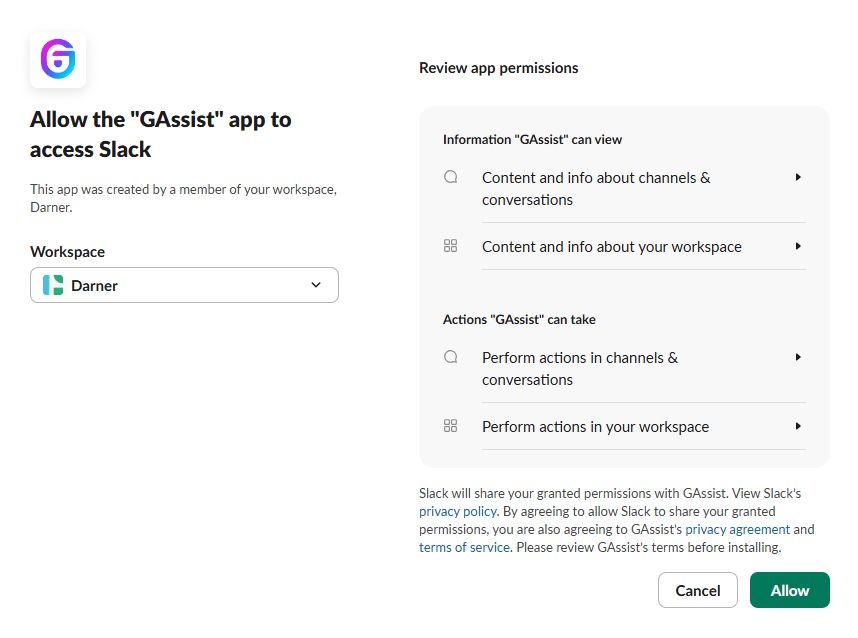
Allow access in Slack
Slack opens an authorization screen listing the permissions GAssist needs. Confirm the workspace, review the permissions, and select Allow to complete the installation.