

Before you start
- A Slack user who can install apps in your workspace. If app installation is restricted, ask your Slack administrator.
- A G360 administrator account. Slack Settings is admin-only.
- Your G360 hostname over HTTPS, for example
https://g360.yourcompany.com. You use it in two places in the app manifest.
- Sending messages — No. G360 only needs outbound HTTPS to
slack.com. - Automatic member updates — Yes. Slack must reach G360 on port 443 with a valid, trusted TLS certificate. Self-signed certificates are rejected.
event_subscriptions and interactivity blocks from the manifest, skip step 3, and use Refresh members to keep the member list current.Set up Slack
Create the Slack app
- Go to api.slack.com/apps and click Create New App → From a manifest.
- Choose your workspace and click Next.
- On the JSON tab, replace the sample with the app manifest.
- Replace both occurrences of
YOUR-G360-HOSTNAMEwith your G360 hostname. They are in therequest_urlfields near the bottom. - Click Next, review, then Create.
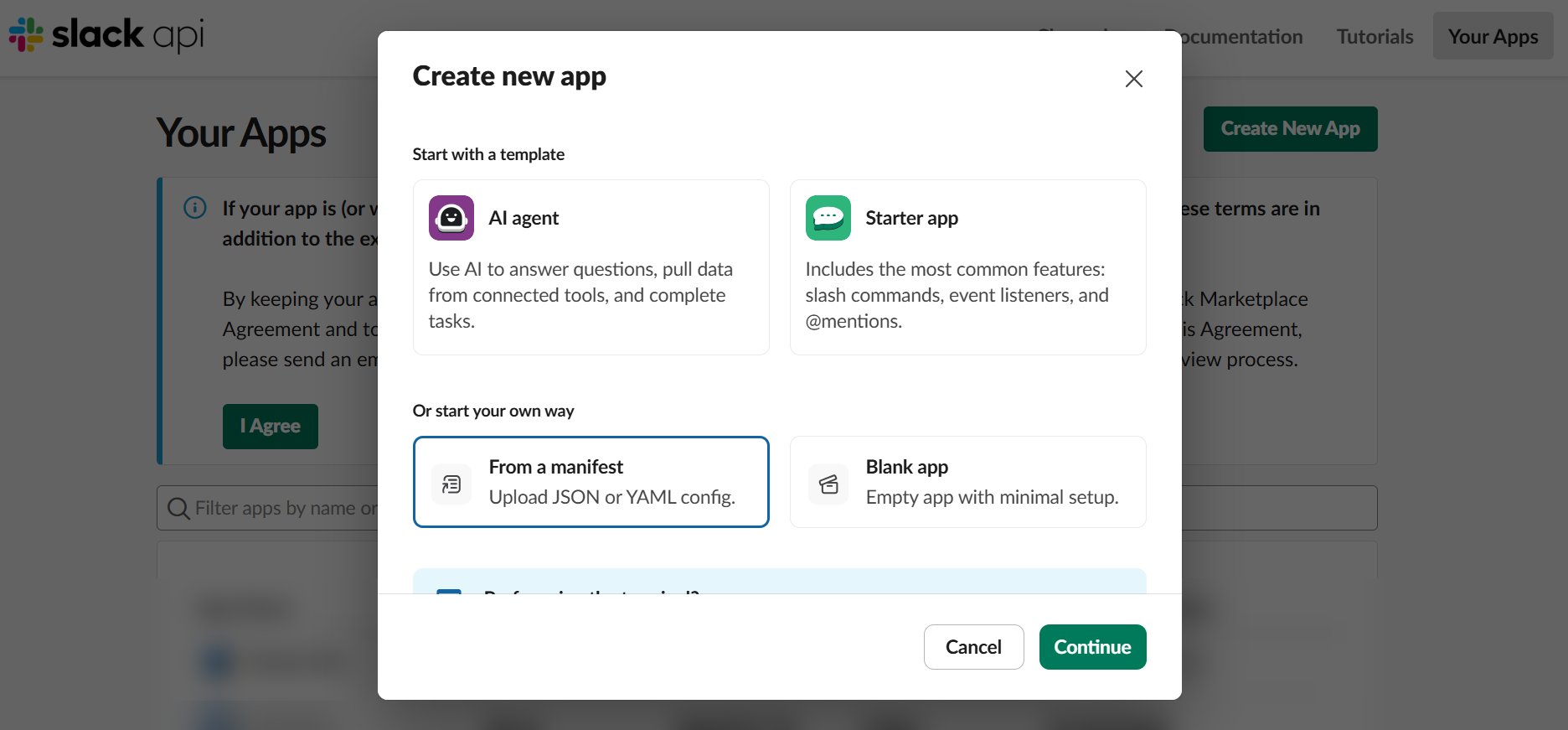
Create New App → From a manifest.
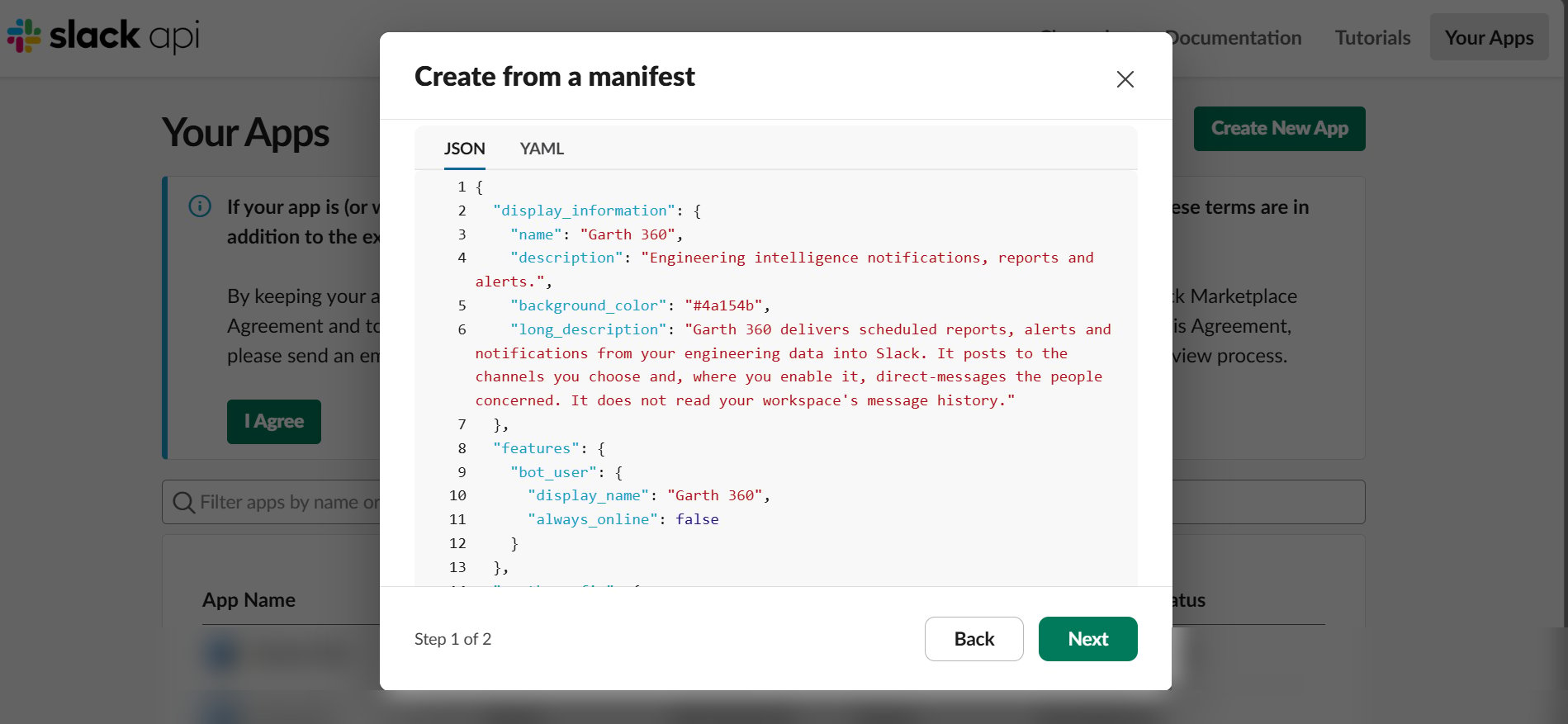
The manifest pasted into the JSON tab.
Install the app and copy the bot token
- In the left sidebar, open OAuth & Permissions.
- Click Install to Workspace and approve the permissions.
- Copy the Bot User OAuth Token. It starts with
xoxb-.
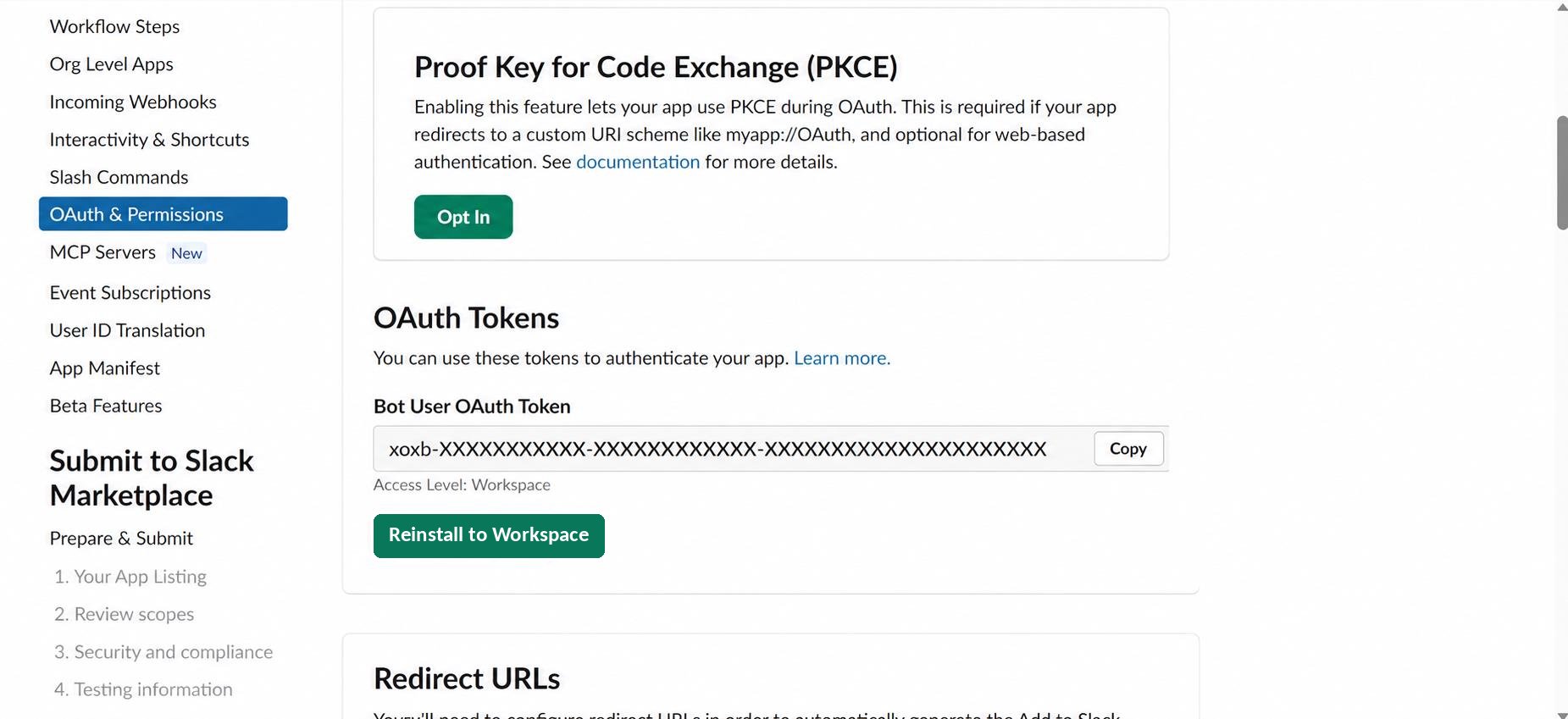
The Bot User OAuth Token on OAuth & Permissions.
Copy the signing secret
event_subscriptions block. Otherwise, skip to step 4.- In the left sidebar, open Basic Information.
- Under App Credentials, click Show next to Signing Secret and copy it.

The Signing Secret on Basic Information.
Connect Slack in G360
- In G360, go to Settings → Slack Settings.
- Paste the Bot User OAuth Token.
- Paste the Signing Secret, if you have one.
- Click Connect Slack.
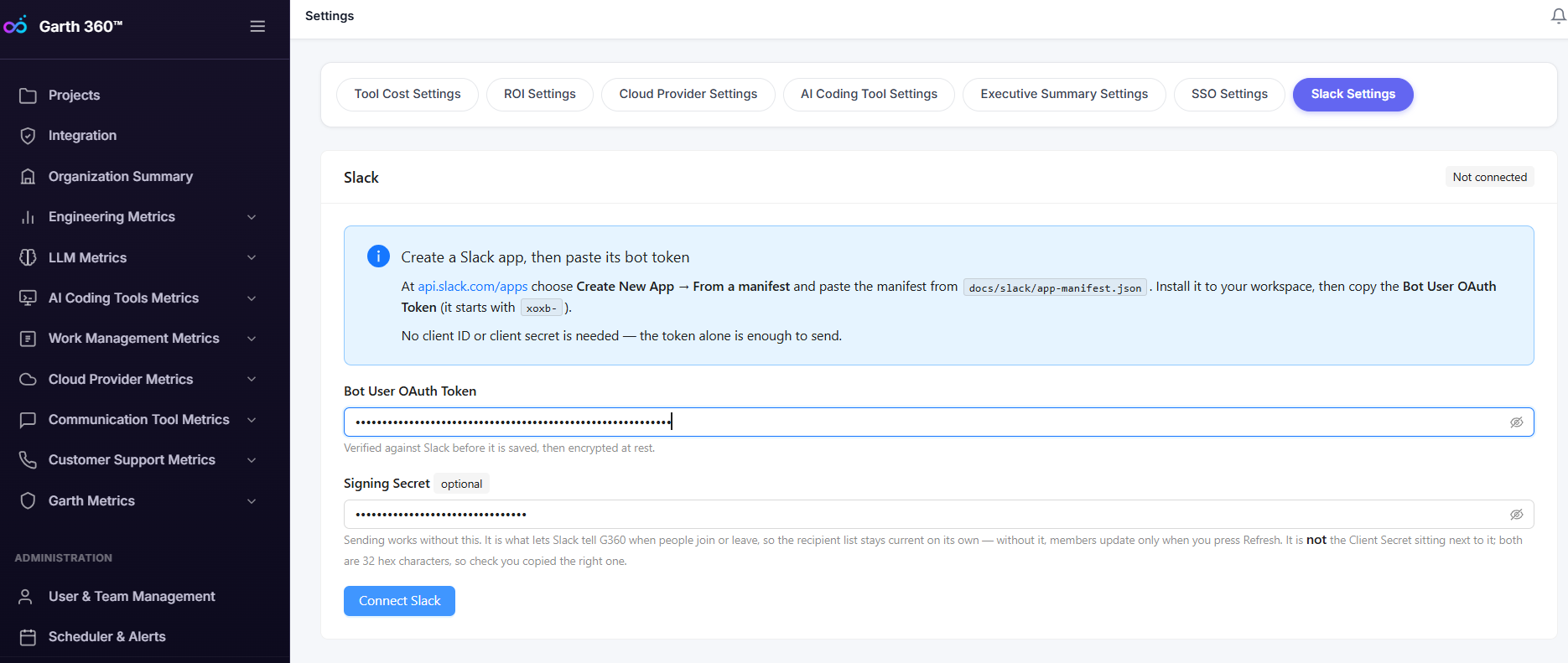
Settings → Slack Settings, before connecting.
Invite the bot to your channels
Send a test message
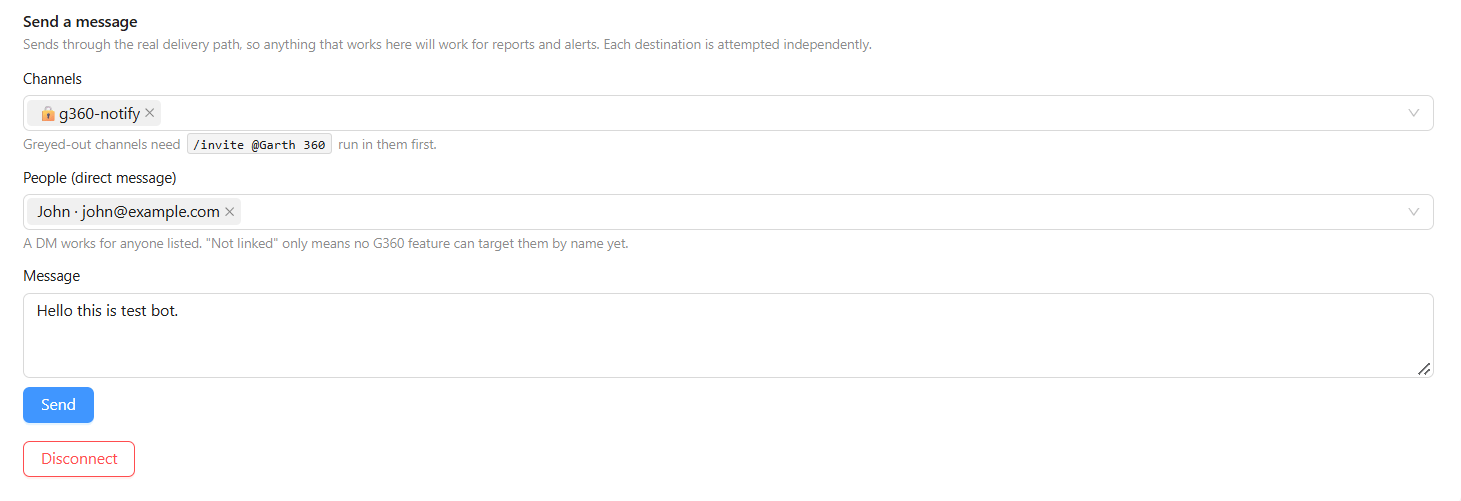
Send a message, with a channel and a person selected.
Use Slack in reports and alerts
In Schedule Report or Schedule Alert, select Slack under Notification Channels, then choose channels and people. No webhook URL is needed — destinations come from your real channel and member lists, so a report can only point where the app can reach.Keep the member list current
Automatic member updates on the settings page shows the sync mode:Disconnect Slack
- In G360, click Disconnect on Slack Settings. G360 stops sending and deletes the stored credentials.
- In Slack, remove the app from your workspace. G360 detects the removal and marks the connection inactive.
Troubleshooting
"That is a user token (xoxp-)" or "That is an app-level token (xapp-)"
"That is a user token (xoxp-)" or "That is an app-level token (xapp-)"
xoxb-) from OAuth & Permissions."Slack rejected the token: invalid_auth"
"Slack rejected the token: invalid_auth"
"Some expected permissions are missing"
"Some expected permissions are missing"
Sending fails with "not_in_channel"
Sending fails with "not_in_channel"
/invite @G360 in it. This is the most common first-run problem.Sending fails with "channel_not_found"
Sending fails with "channel_not_found"
"No member emails were returned"
"No member emails were returned"
users:read.email scope. Add it, reinstall the app, and paste the new token."Synced N members, but none matched a G360 user"
"Synced N members, but none matched a G360 user"
"Connected, but the workspace member list could not be loaded"
"Connected, but the workspace member list could not be loaded"
Slack will not accept the request URL when saving the manifest
Slack will not accept the request URL when saving the manifest
- The hostname is your real G360 hostname, with no trailing slash before
/api/v1/…. - The URL is reachable from the internet. Open
https://g360.yourcompany.com/api/v1/slack/events/from a phone on mobile data — any response from G360 means Slack can reach it. - The TLS certificate is valid and trusted. Slack rejects self-signed certificates.
- The signing secret is saved in G360. Without it, G360 cannot answer Slack’s check. Complete steps 3 and 4, then save the request URL again under Event Subscriptions.
event_subscriptions and interactivity blocks and use Refresh members.Automatic member updates stuck on "awaiting Slack"
Automatic member updates stuck on "awaiting Slack"
- The Events request URL is not set. Add the
event_subscriptionsblock from the app manifest, or set it under Event Subscriptions in your Slack app. - Slack cannot reach G360. See the entry above.
- The signing secret is wrong — often the Client Secret was copied instead. Copy it again from Basic Information → App Credentials → Signing Secret.
New members are not appearing on their own
New members are not appearing on their own
Reports are set to Slack but nothing arrives
Reports are set to Slack but nothing arrives
- Check the report’s execution history to confirm it ran.
- Confirm Slack is selected with at least one channel or person.
- Confirm the app is invited to the channel.
- Confirm Slack Settings still shows the connection as connected.
Reference
App manifest
Replace both occurrences ofYOUR-G360-HOSTNAME with your G360 hostname. If G360 is not reachable from the internet, delete the event_subscriptions and interactivity blocks.
Permissions
channels:read returns channel names, not messages.
G360 subscribes to four events: team_join and user_change keep the member list current; app_uninstalled and tokens_revoked stop sending when the app is removed.